
Reassure buyers right where they decide to order.
Go to Conversion Boosters → Trust & FAQ and press Activate. Each block shows only once it has content.
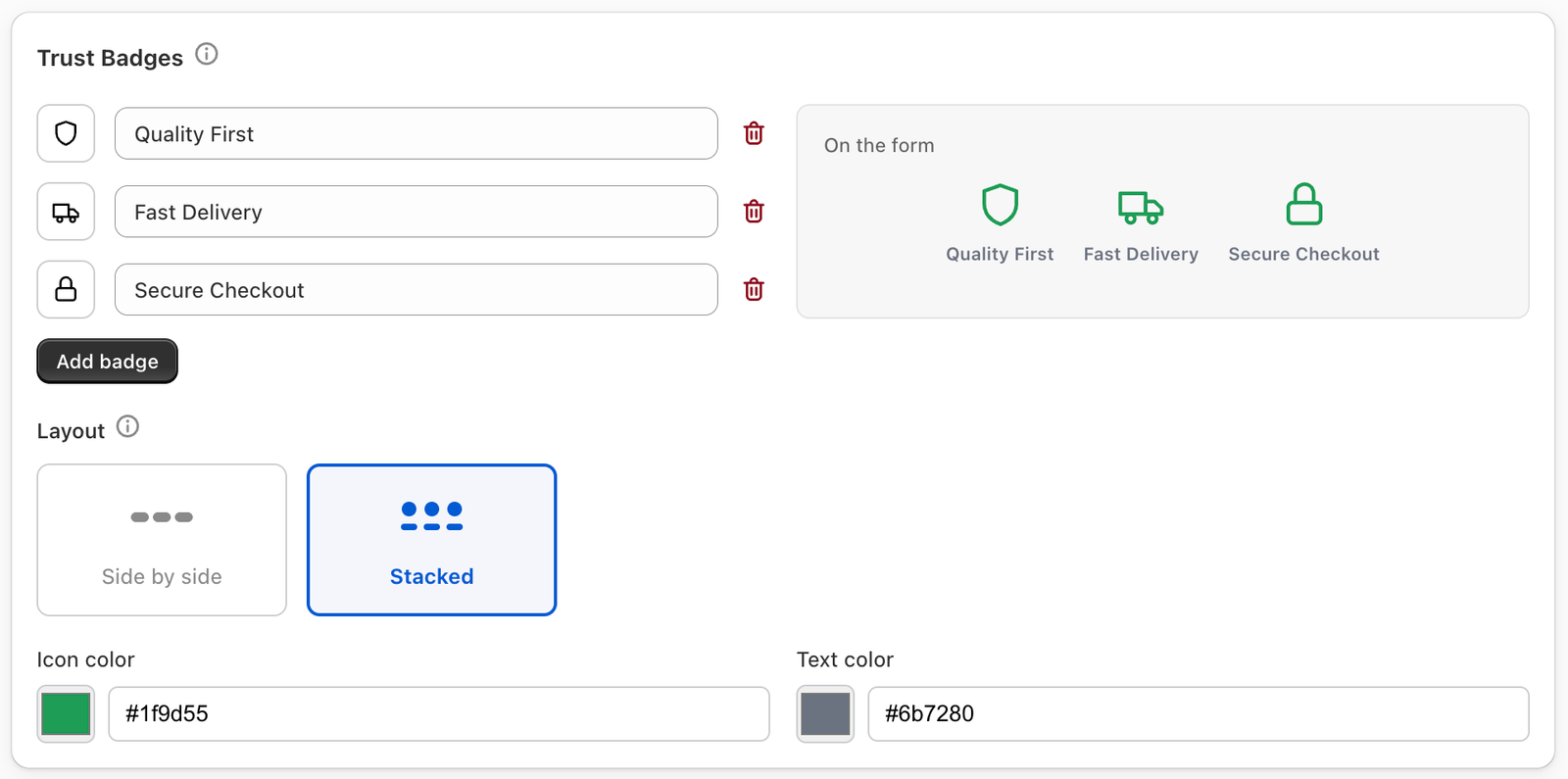
Trust Badges
A row of icons and short labels around the Place Order button (e.g. Cash on delivery · Secure checkout · Fast delivery).
- Press Add badge, pick an icon and type a Label.
- Layout — Side by side (each badge sized to its text) or Stacked (a big icon above each label).
- Icon color and Text color.
Labels are never cut off; on a small phone, a badge that doesn’t fit moves to a second line.
USP carousel
Short rotating slides beside the buy button — a bold title over one line, with dots on the right.
- Press Add slide and write a Title and Subtitle (e.g. Free delivery / Express delivery with signature).
- Seconds per slide — it pauses while the buyer points at it.
- Show the USP carousel in — Offers or Checkout.
- USP carousel Style — colours, dots colour, title and subtitle size.
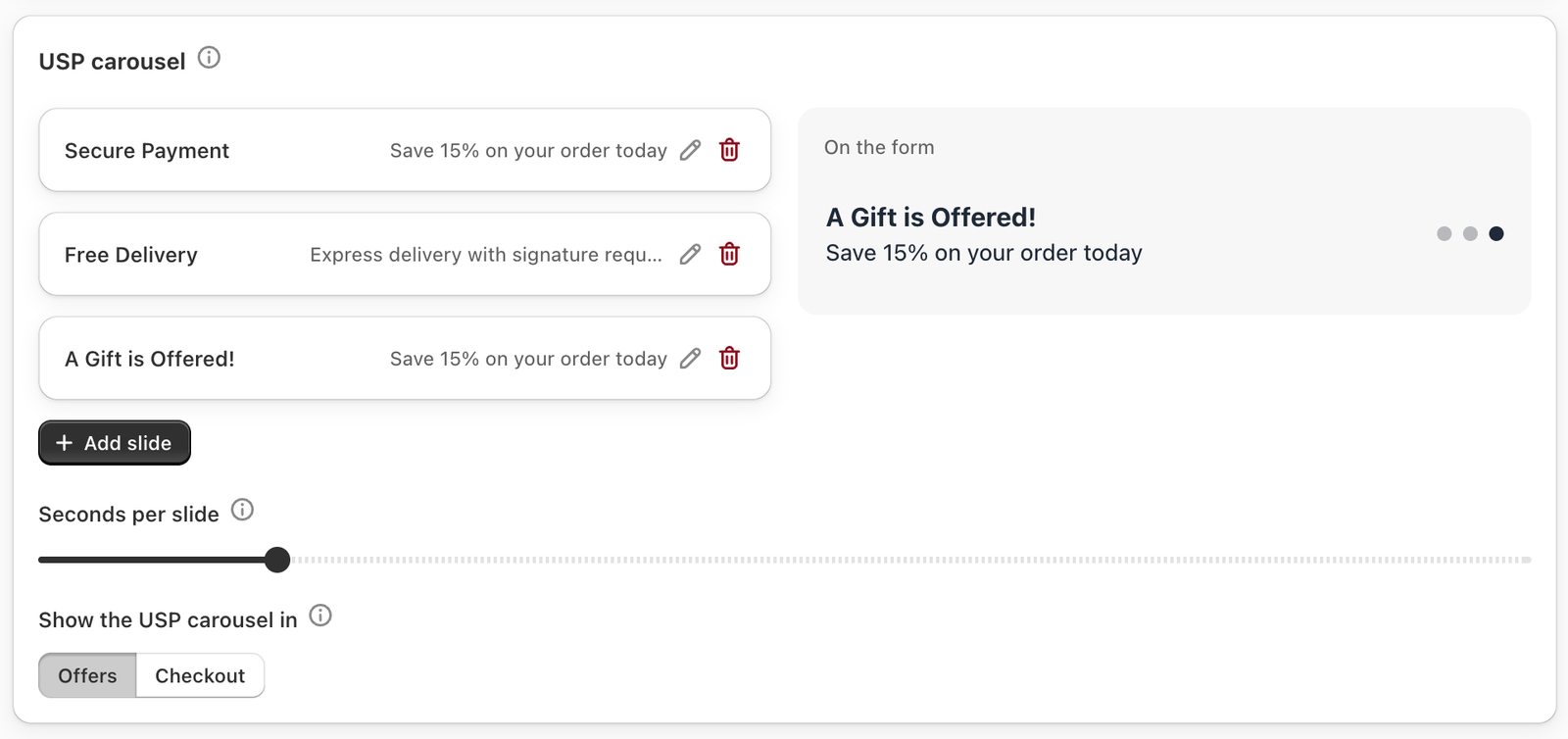
Image banner
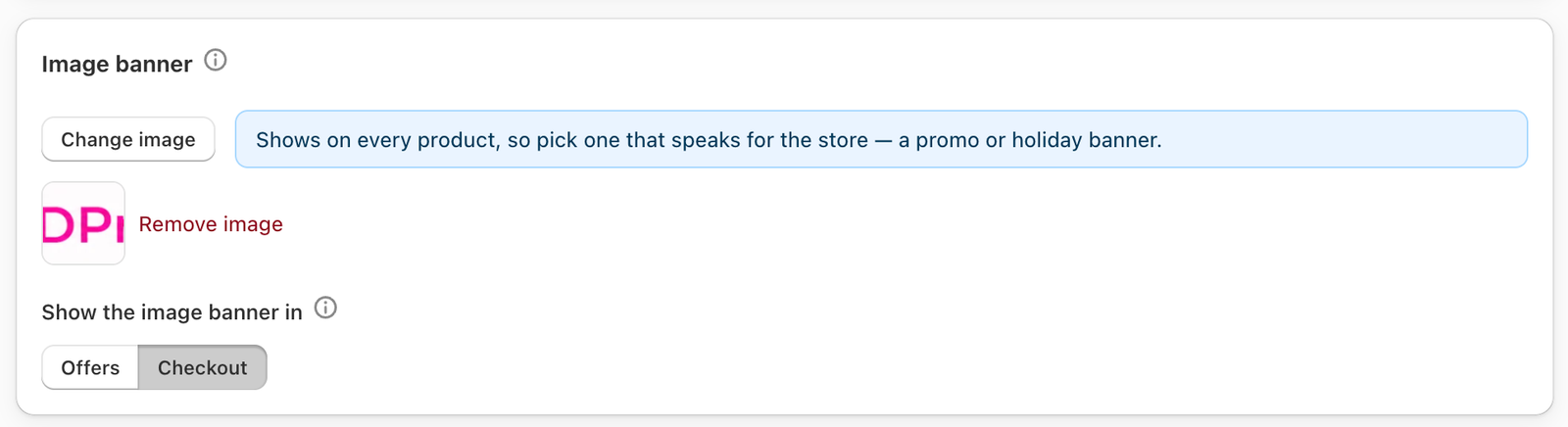
One image placed beside the trust badges, around the Place Order button. Choose an image that speaks for the whole store, such as a promo banner. Show the image banner in Offers or Checkout.
Features
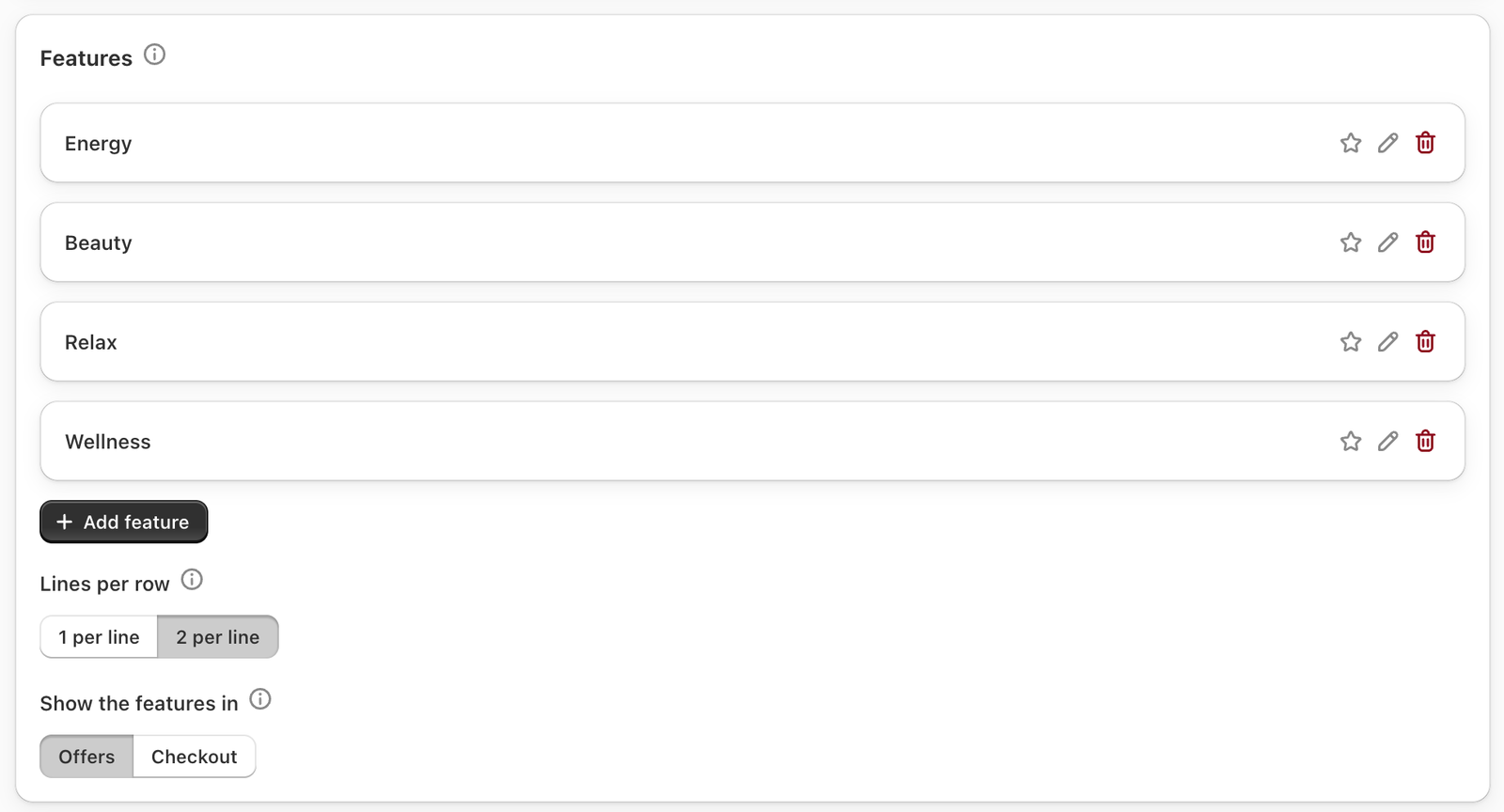
A stacked list of short lines with an icon (or an image), placed around the variants and quantity tiers.
- Press Add feature and write the text.
- Star a line to highlight it.
- Lines per row — one or two.
- Features Style — icon and background colours, highlighted background and border.
FAQ
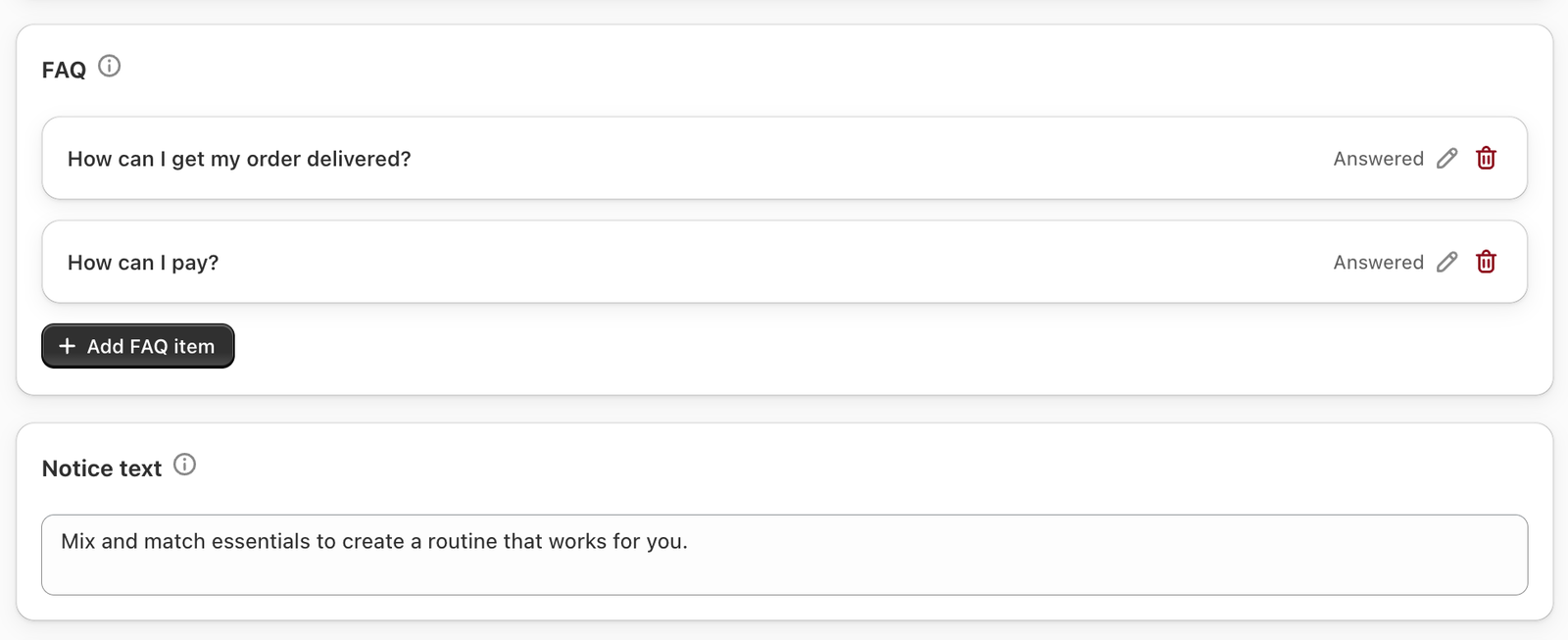
An accordion at the very bottom of the form, for questions a buyer asks before paying on delivery. Press Add FAQ item, pick an icon, and write the Question and Answer.
Notice text
One small line at the very bottom of the form. Leave it empty to show nothing.