COD orders never pass through Shopify’s checkout, so your ad platforms only see them if the form reports them.
Go to Integrations → Pixels and press Activate. Each pixel’s own library is loaded for you — you don’t need the platform’s sales channel installed.
Add a pixel
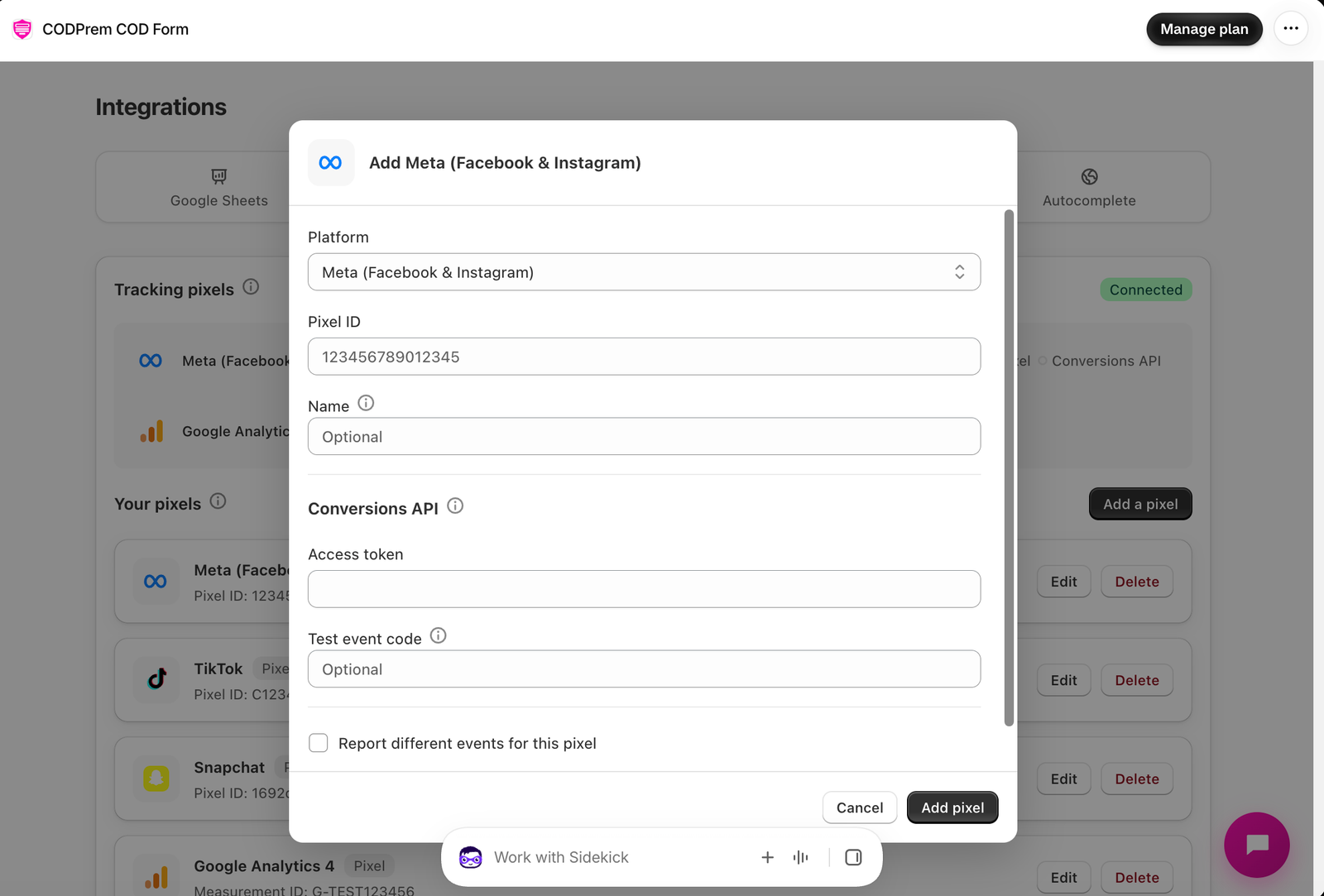
- Press Add a pixel.
- Choose the Platform: Meta, TikTok, Snapchat, Google Analytics 4, Google Ads or Pinterest.
- Enter the pixel or measurement ID (for Google Ads, the full
AW-123456789/label). - Name — only for you, to tell several pixels apart.
- Optional but recommended: an Access token for the platform’s Conversions API. The order is then also sent from our server, so orders lost to ad blockers and iOS still get reported. Both copies share the order number, so the platform counts it once.
- Optional: a Test event code, only while checking the connection — events then appear in the platform’s test tool.
- Save pixel.
You can add more than one pixel per platform.
Choose your events
- When an order is placed — Lead (recommended for COD, since orders can still be refused at the door), Purchase, or Don’t send.
- When the form opens — e.g. InitiateCheckout.
- When a field is filled — the first time the buyer types; separates “opened” from “started”. Browser only.
- When an order is confirmed — sent when you mark an order Confirmed. Server-side; needs an access token.
- When an order is delivered — sent when an order resolves as delivered (from your order statuses, the Dashboard or the sheet’s Delivery column). The strongest signal a COD campaign can optimise on. Server-side; needs an access token.
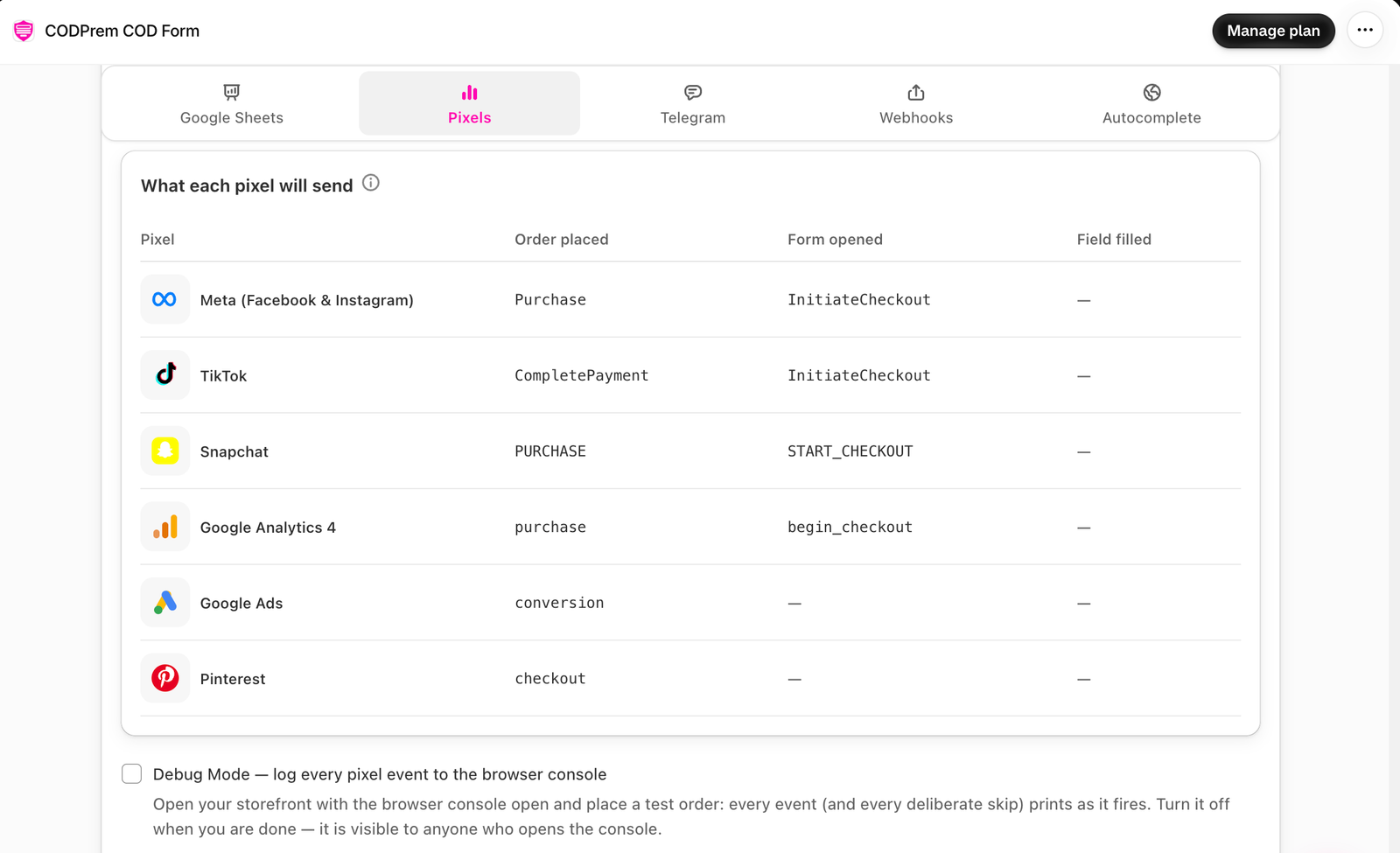
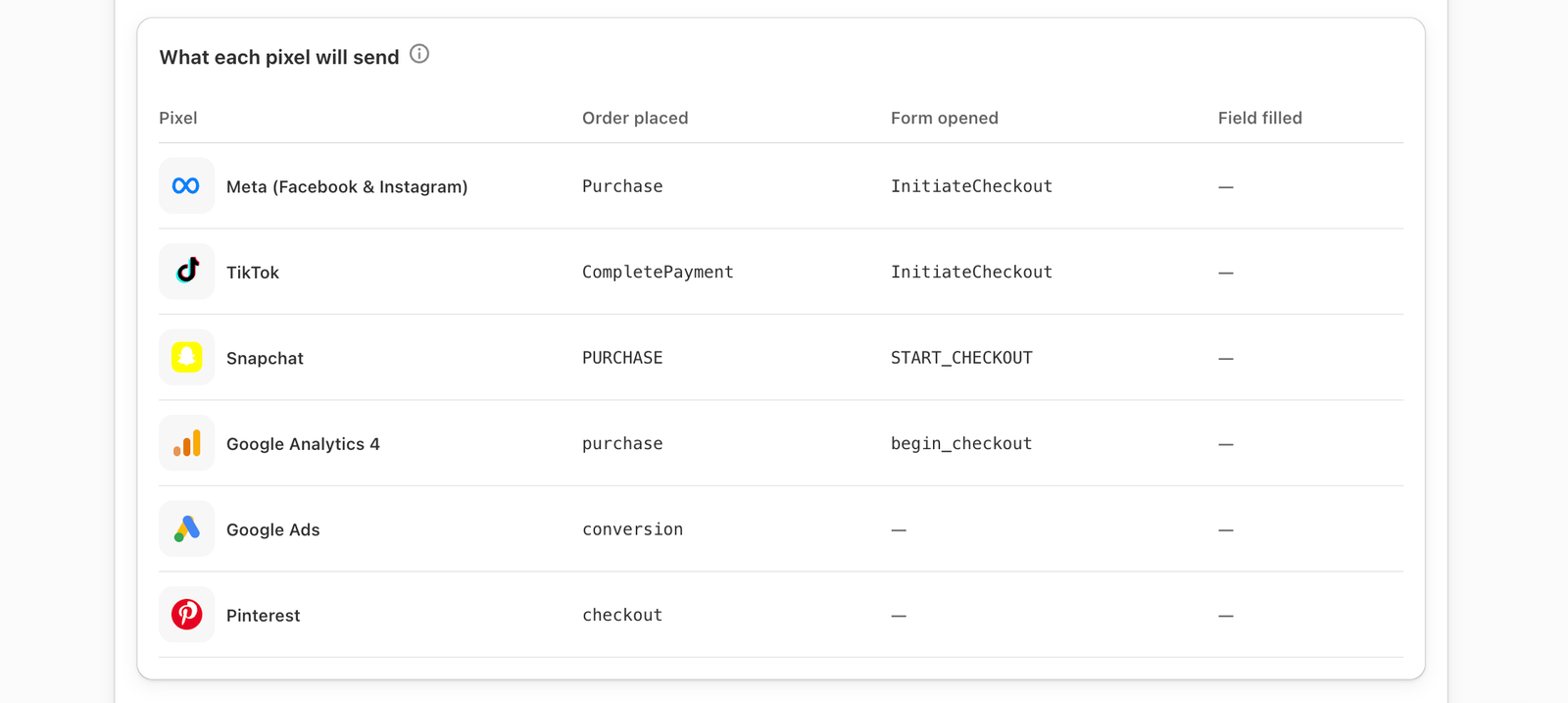
The table What each pixel will send shows the exact event name each platform receives. A dash means that platform has no equivalent, so nothing is sent.
A pixel can Report different events for this pixel if one ad account needs something different.
Content ID format
How a product is named in your catalogue. Pick shopify_{REGION}_{product}_{variant} if your catalogue came from Shopify’s Facebook sales channel (the most common case). A wrong format still sends the event but matches no product, so dynamic retargeting stops working.
Check it works
Switch on Debug Mode, open your store with the browser console open, and place a test order: every event prints as it fires. Turn it off afterwards. Also check each platform’s own Events Manager or test tool.