
What the buyer sees right after ordering.
Go to Settings → Thank You Page.
After the order is placed
- Show confirmation in the form — the buyer stays on the product page and sees your message in place of the form.
- Redirect to Shopify’s order status page — Shopify’s own page, keeping any customisations or apps you’ve added there.
- Redirect to my own page — a page of yours, useful for a conversion pixel or your own delivery information. In the Redirect URL you can use
{{order.number}},{{order.total}},{{customer.first_name}},{{customer.last_name}},{{customer.phone}}and{{order.products}}. If the address is empty or invalid, the buyer sees the in-form confirmation instead.

The in-form confirmation
- Title and Message.
- Note section — an extra note, e.g. delivery times or a support number.
- Show the item count line — “6 items on their way, including 2 free gifts”.
- Group items by the offer they came from — items from a bundle, tier or cross-sell card are listed under the offer’s name.
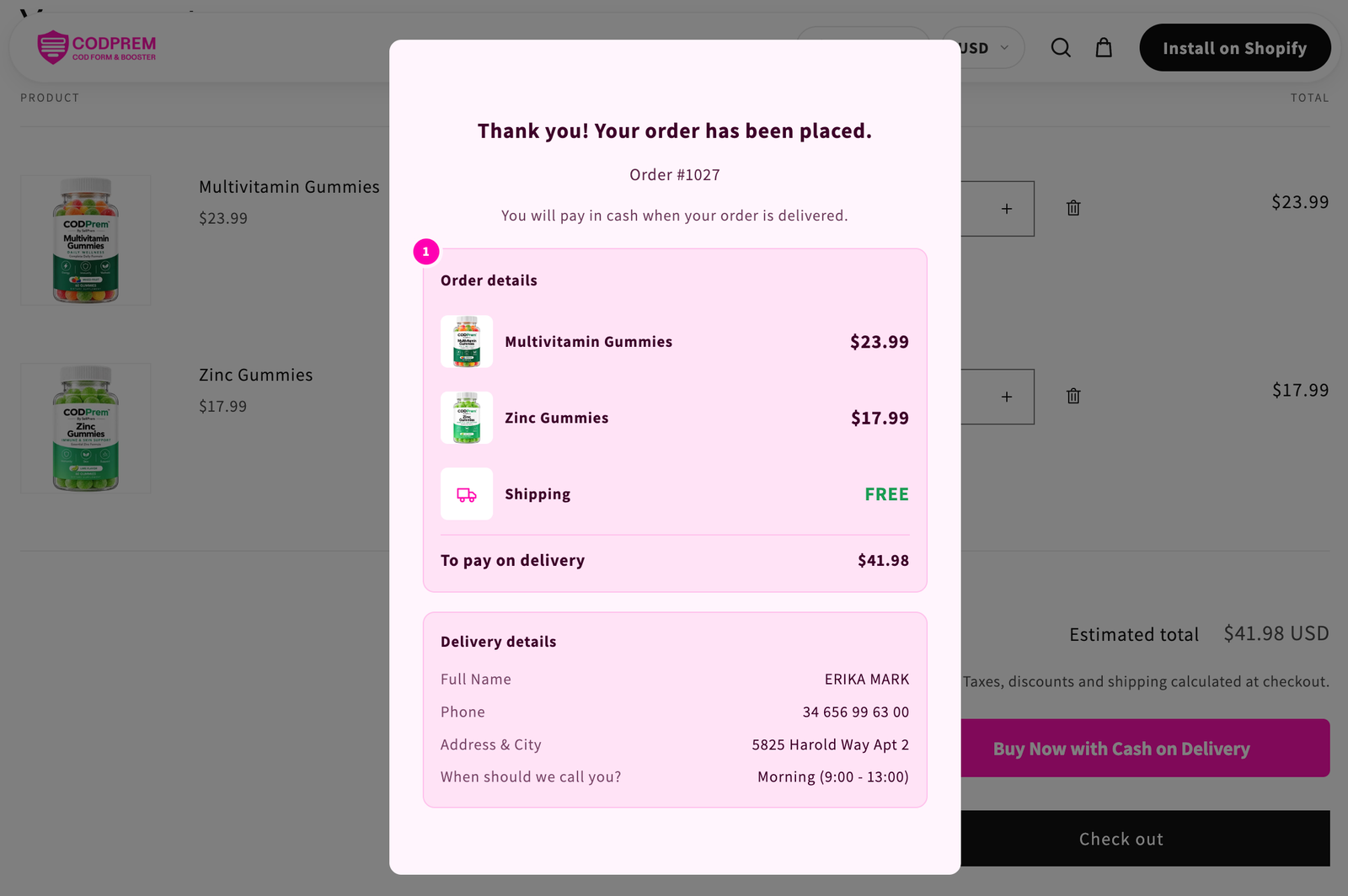
The confirmation shows the order number, every item, the total discount, the delivery details the buyer entered, and the amount to pay on delivery.
WhatsApp Order Confirmation
Tick Show a WhatsApp button on the confirmation, enter Your WhatsApp number with the country code (digits only, e.g. 34600000000) and a Pre-filled message. Use {order_number} for the order number. Buyers tap it to confirm their order in your chat — often the fastest way to confirm a COD order.

Thank You Page Style
Colours of the confirmation, including the heading and item count line. Doesn’t apply when redirecting.