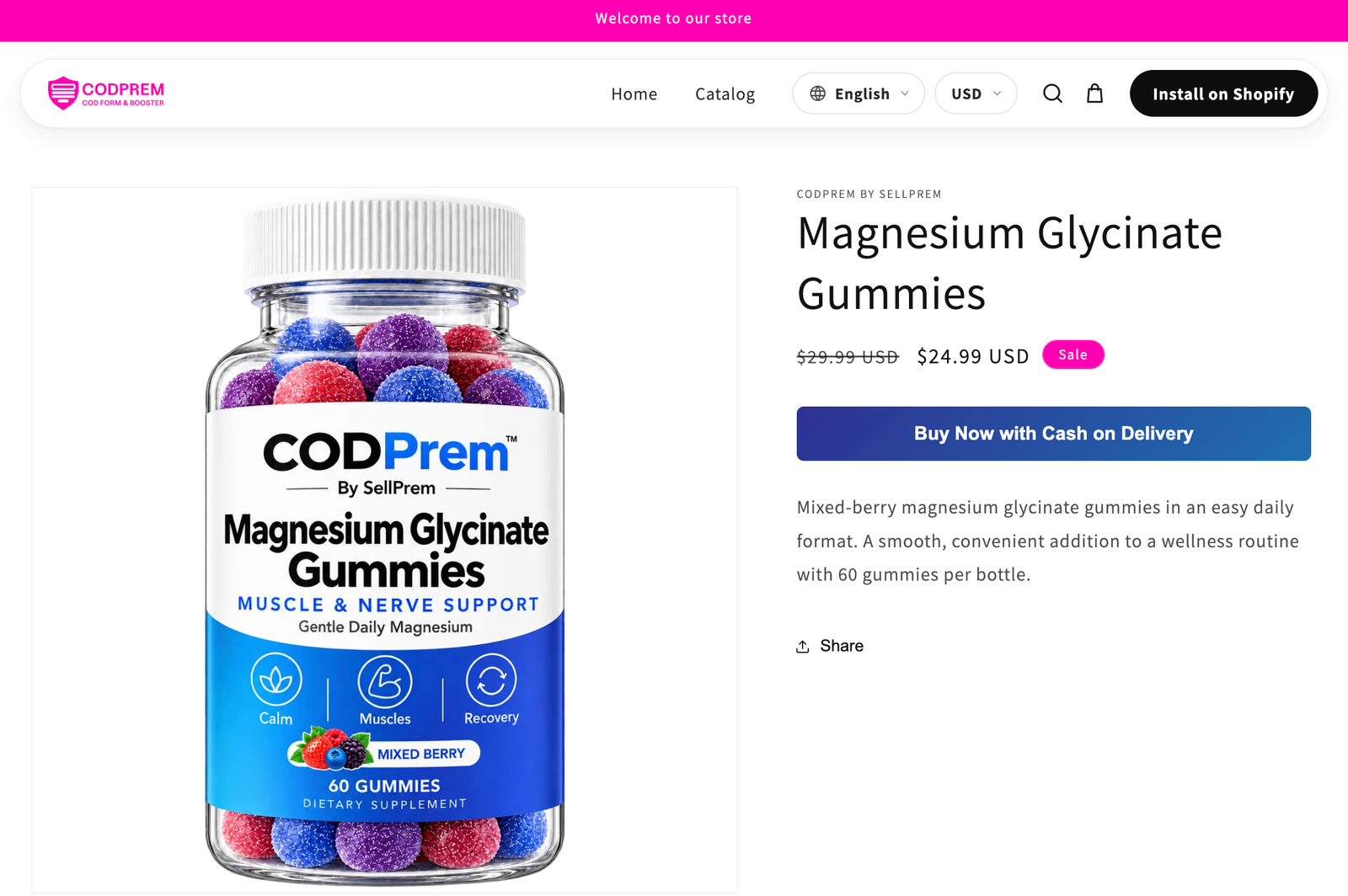
Run a different display mode and theme on your best-selling product while every other product keeps your normal form.
Go to Form Builder → Style Target. Available on CODPrem Go (5 cards), Boost (15) and Pro (unlimited).
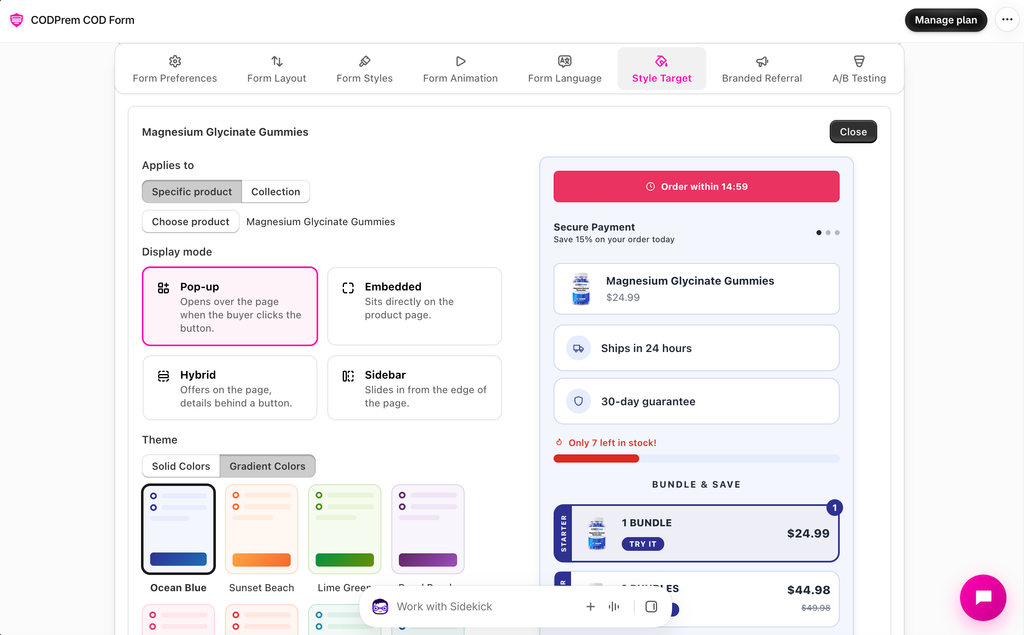
Add a style target
- Press Add style target and give it a name (only you see it).
- Under Applies to, choose Specific product or Collection, then pick it.
- Choose a Display mode and a Theme (Solid or Gradient Colors).
- Optional: under Form layout on this target, rearrange or hide blocks for this product only.
- Optional: choose which checkout buttons this product shows — Place Order, Prepayment and WhatsApp (the last two need to be on in Settings → Checkout Buttons). At least one always stays on.
- Save.
Which card wins
- A product card beats a collection card.
- Among cards of the same kind, the first one in your list wins.
- One product can only have one product card.
With A/B Testing
If an A/B test runs on a targeted product, the card’s style becomes that product’s Version A, and the test’s other versions change it from there.
When to use it
Most COD stores run one winning product per ad campaign. Give that product a landing-page feel — for example an Embedded form in your brand colours — without changing the rest of your store.
If you move to a smaller plan, cards past your new limit stop applying but are never deleted.