
Choose how the quantity cards are arranged and what they show, then their colours.
Both cards are on Conversion Boosters → Quantity & variants.
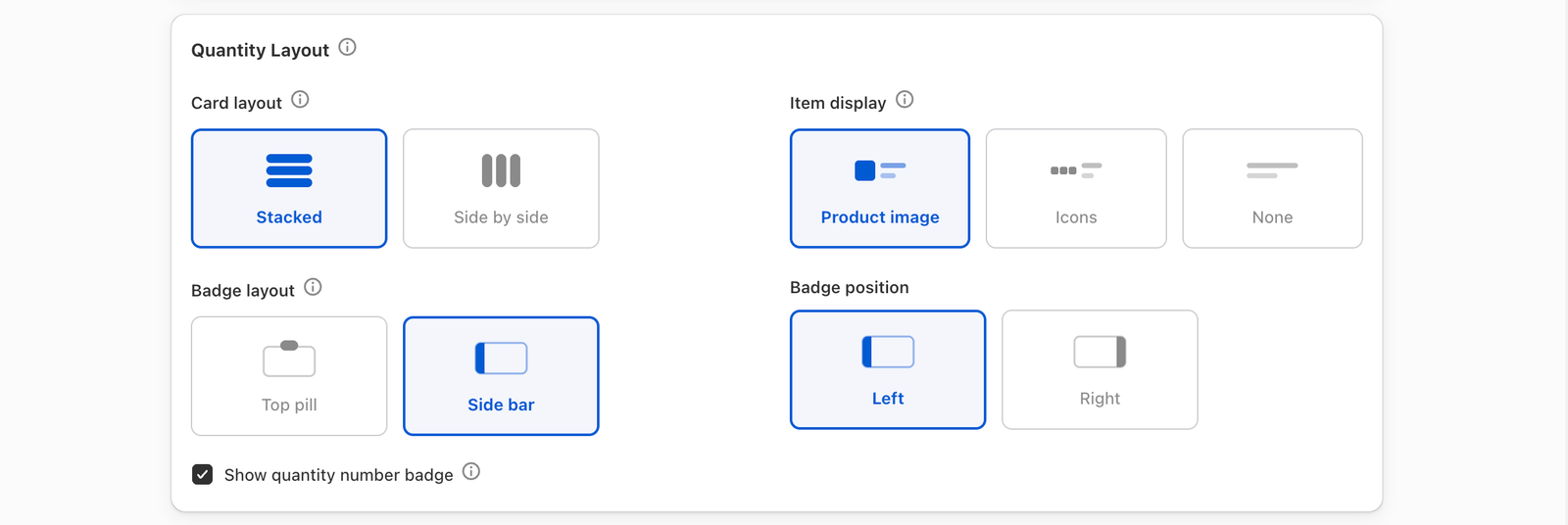
Quantity Layout
- Card layout — Stacked puts cards down the page, full width. Side by side puts them across a row as tall tiles with a coloured header (up to three).
- Item display — what sits beside the tier’s title: Product image (follows the chosen variant), Icons (a box per item), or None. In Content cards mode: Product image or None.
- Badge layout — Top pill on the card’s top edge, or Side bar down one edge (Stacked only).
- Badge position — Left, Center or Right.
- Default Selected Quantity — which tier is pre-selected.
- Label under the title (Twice bundle) — “10% OFF” as plain text or as a pill.
- Show quantity number badge — a small circle on the chosen card showing how many units it holds.
None of these are colours, so changing Theme Mode never changes them.
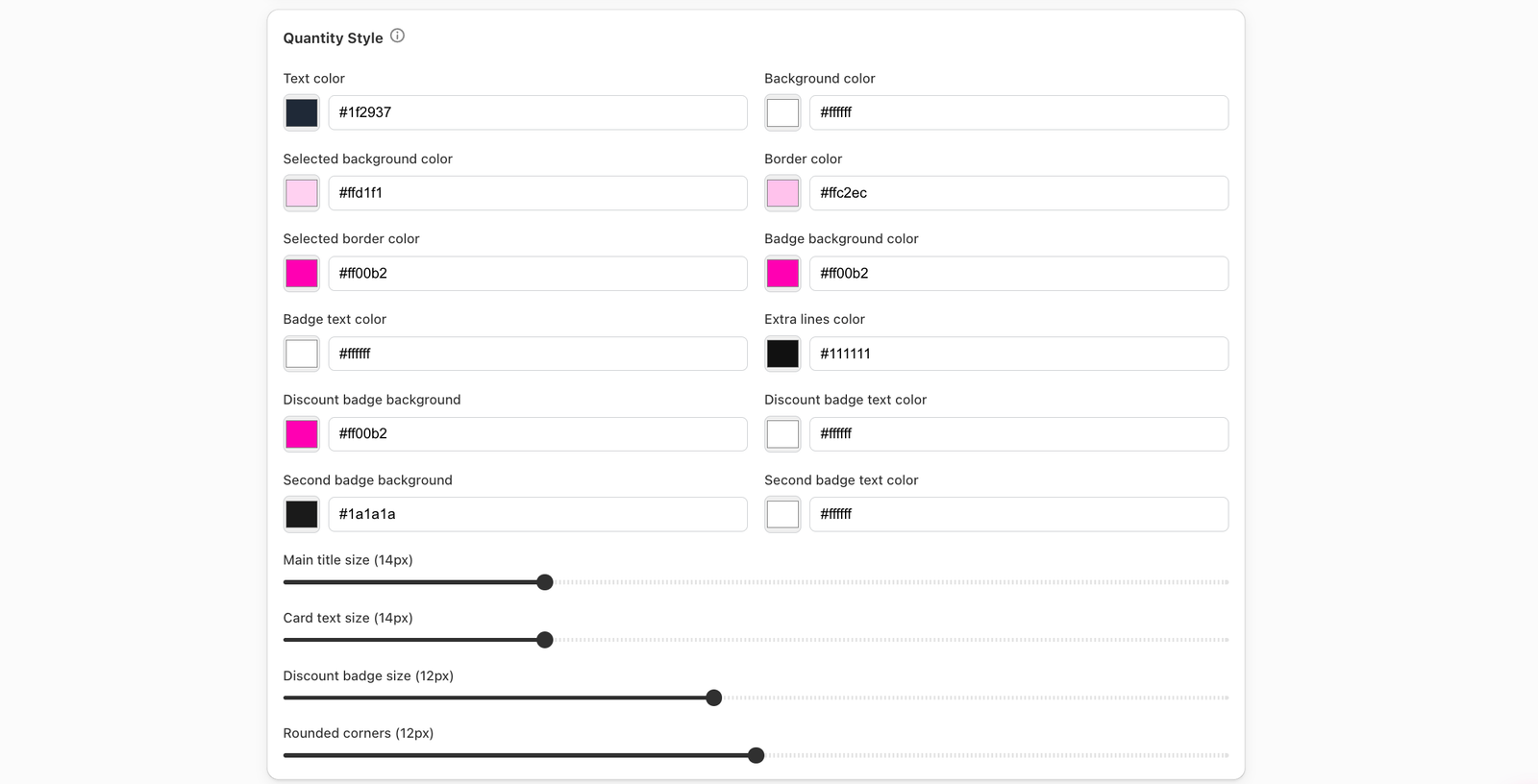
Quantity Style
The colours and sizes of the cards. It follows Theme Mode until you change a value; Reset to Theme Mode hands it back.
- Text, background, selected background, border and selected border colours.
- Badge, discount badge and second badge colours.
- Extra lines color.
- Main title size, Card text size and Discount badge size — these apply whatever the theme.
- Rounded corners.
Tip
The selected card is the one the buyer will be charged for. Give it a clear selected border or background so it stands out from the others.