
Every COD order added as a row in a spreadsheet in your own Google Drive — and delivery outcomes read back from it.
Go to Integrations → Google Sheets and press Activate.
Before you connect
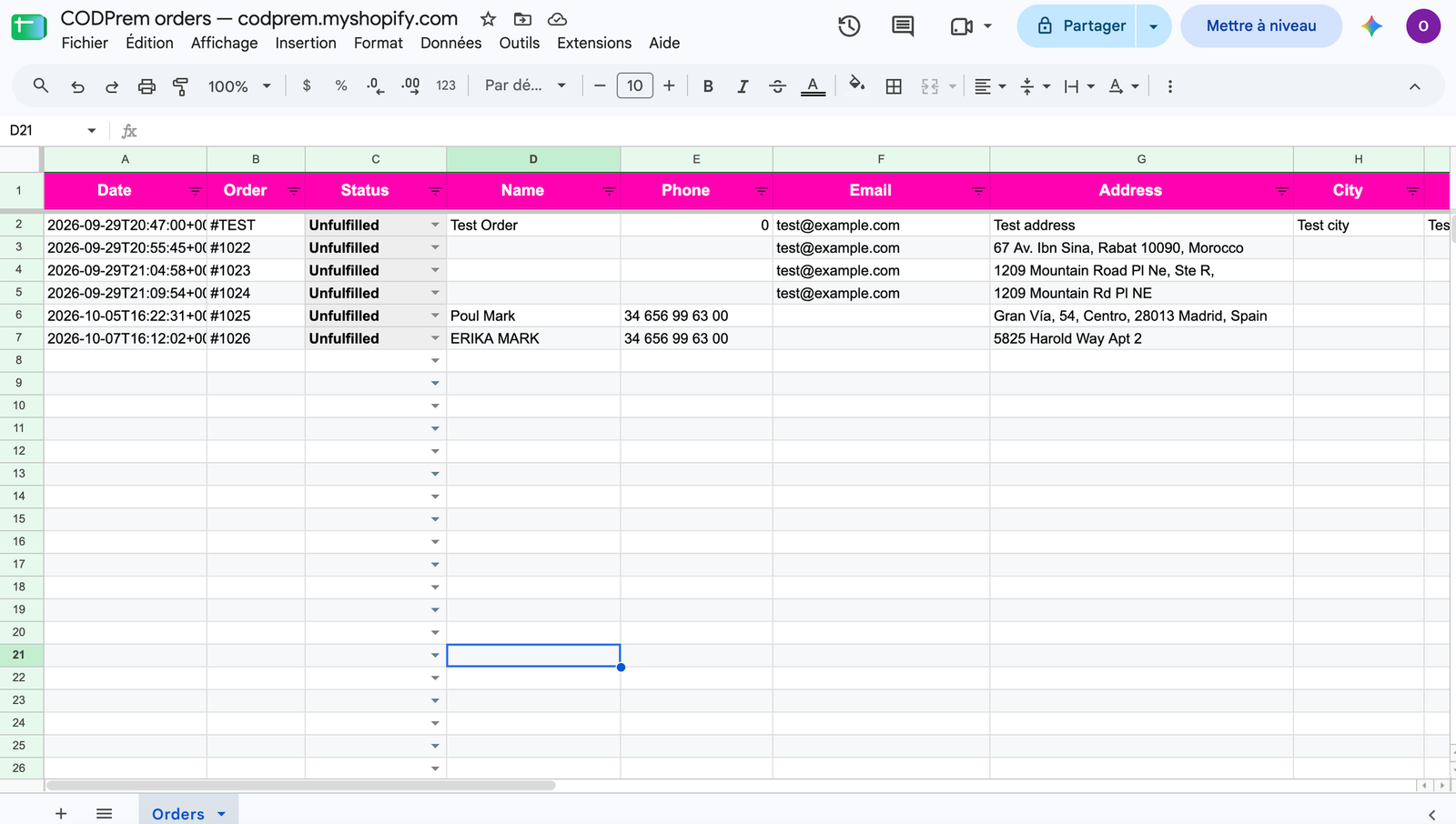
The sheet is created with a column for every field your form collects. Set up your fields first (Form Builder → Form Layout → Fields Editor), including any custom fields.
Connect
- Press Connect Google. A Google tab opens.
- Choose your Google account and approve. CODPrem can only open the sheet it creates — it has no access to anything else in your Drive.
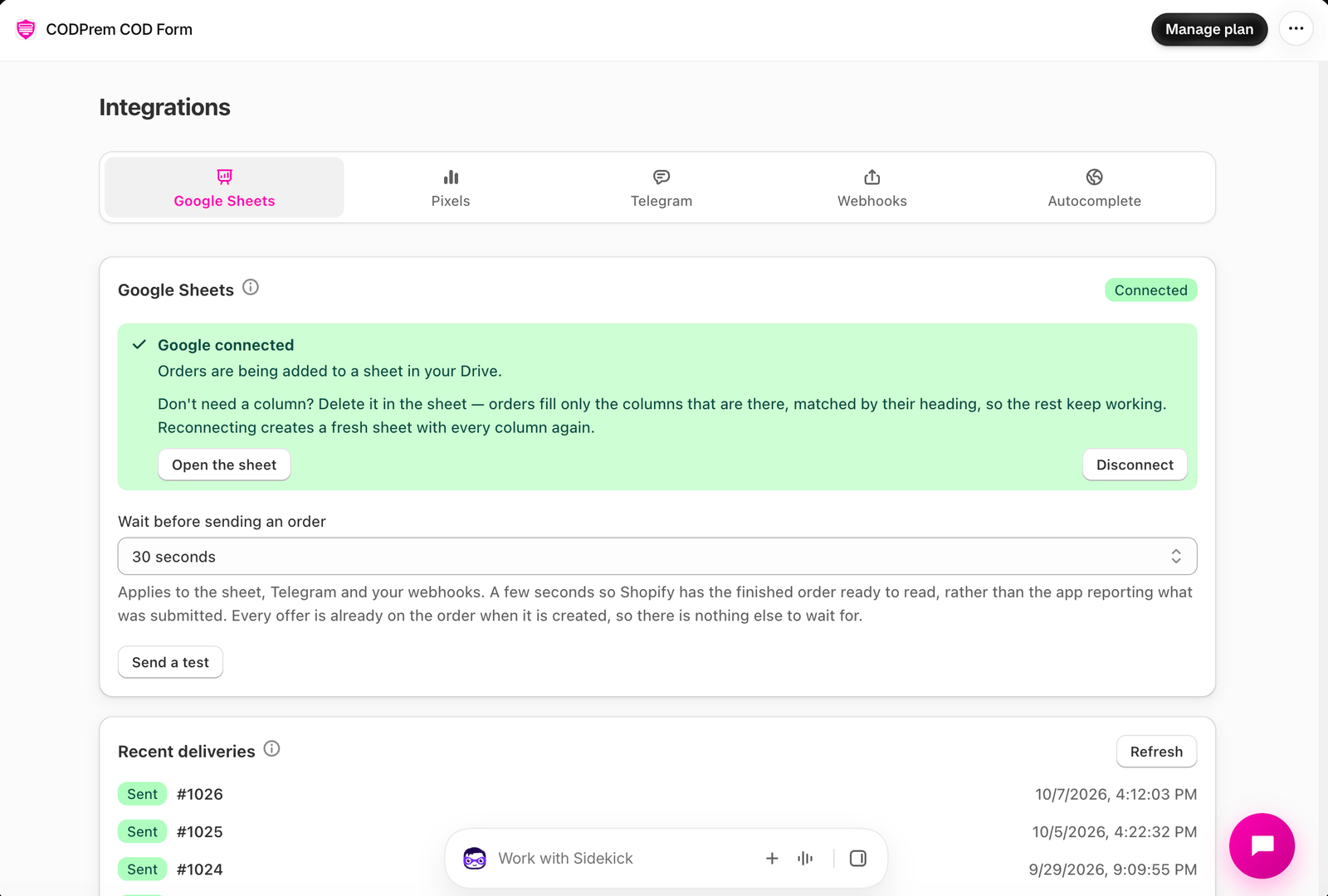
- The page updates by itself: Google connected, with Open the sheet.
Settings
- Wait before sending an order — a few seconds, so the sheet receives the finished order from Shopify. Also applies to Telegram and webhooks.
- Update columns — if you add a field later, this adds its column to the same sheet. The card tells you how many fields are missing.
- Don’t need a column? Delete it in the sheet. Orders fill only the columns that are there, matched by their heading.
The Delivery column
Your sheet has a Delivery column with a Delivered / Returned dropdown. Whoever works the sheet — you, your team or your courier — picks the outcome, and CODPrem reads it back every hour. It feeds your Dashboard’s delivery rate, your A/B tests and your pixels’ Delivered event. A blank cell means still on its way.
Google Ads tab
If you report confirmed or delivered orders to Google Ads (Integrations → Pixels), orders that came from a Google ad are written hourly to a Google Ads tab in the same sheet, ready for a scheduled Google Ads conversion import.
Abandoned leads
Abandoned Leads → Send leads to the sheet uses the same Google connection and writes leads to their own spreadsheet.
Troubleshooting
- Connected, but the sheet is missing — press Create the sheet. If it fails, the Google Sheets API may not be enabled for the account’s project.
- Recent deliveries shows the last two weeks of attempts, with what Google said when one failed.
- Disconnect forgets the connection; your spreadsheet stays in your Drive. Reconnecting creates a fresh sheet.