
Let buyers tap a voucher instead of having to know a code.
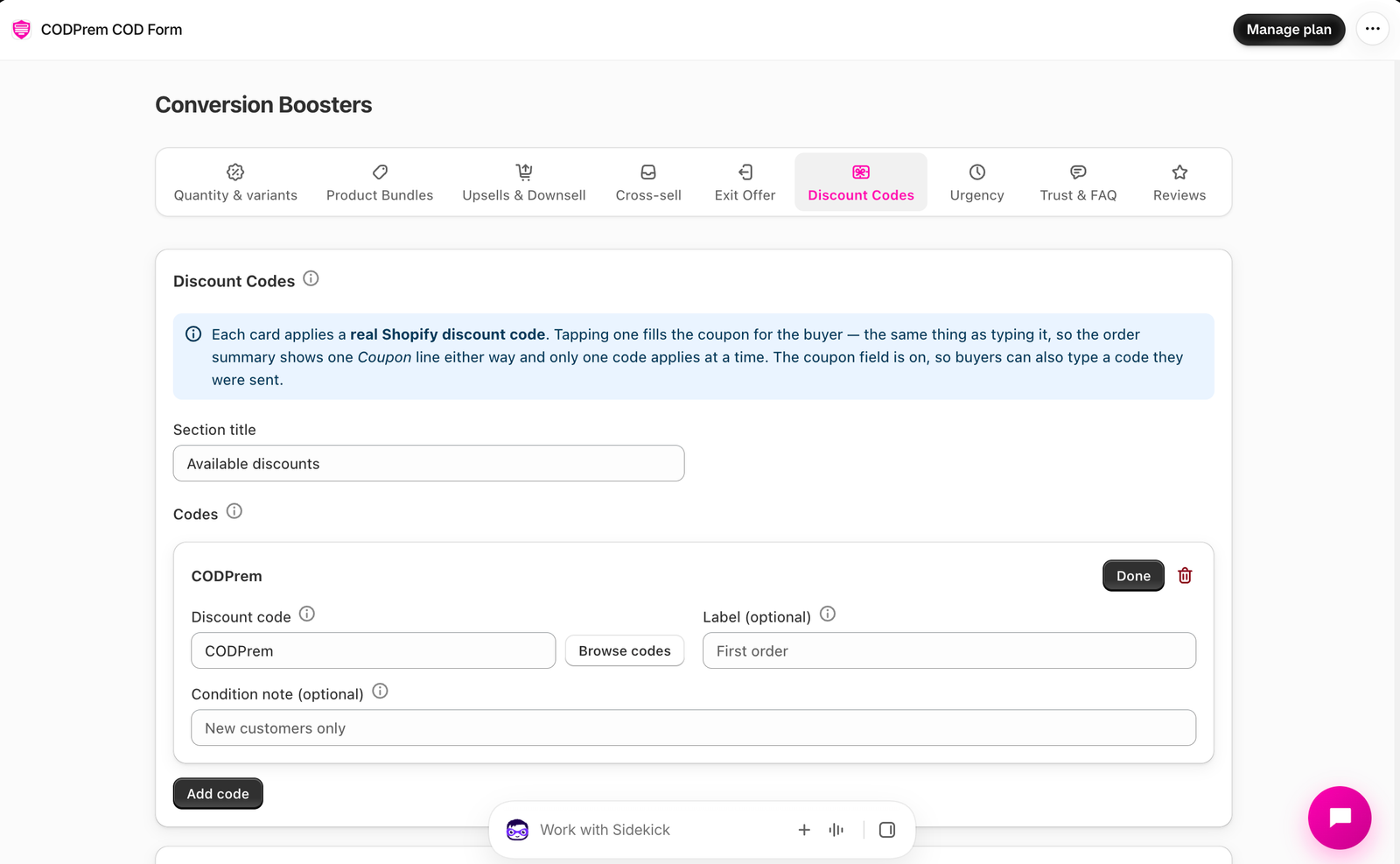
Go to Conversion Boosters → Discount Codes.
Add a voucher
- Press Add code.
- Type a Discount code, or press Browse codes to pick from your Shopify discounts. Codes that can’t be used as vouchers are listed with the reason.
- Optional: a Label (e.g. First order) and a Condition note (e.g. New customers only).
- Save.
Set the Section title (e.g. Available discounts) at the top.
Which codes work
The saving shown on each voucher is read from Shopify, so a card can never advertise more than the code gives. A voucher works for codes that apply to the whole order, as a percentage or a fixed amount. These are skipped on the storefront:
- inactive, expired or scheduled codes
- codes for certain products or certain customers only
- free shipping and Buy X Get Y codes
- codes with a minimum spend
On the storefront
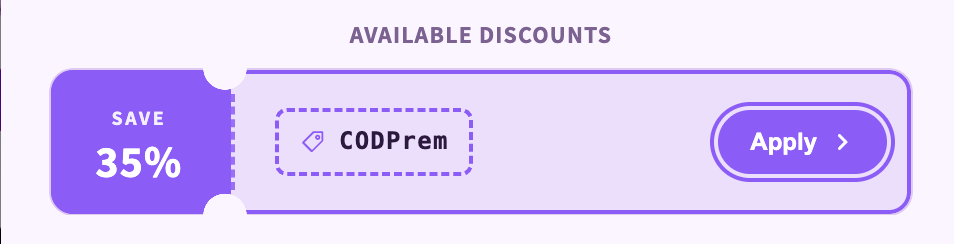
Tapping a voucher fills the coupon for the buyer. Only one code applies per order, shown as one “Coupon (CODE)” line. If the coupon field is on (Settings → General → Coupon Code), buyers can also type a code they were sent.
Discount Codes Style
Voucher colours, the Applied border color, and the Saving badge & Apply button colours.