
Serve your form in your shoppers’ own language — 28 languages ready, any language possible.
Go to Form Builder → Form Language.
Source language
The language your labels, buttons and messages are written in. Every other language is translated from it, and shoppers whose language isn’t on your list see it.
Add languages
Press Add a language and choose one. Languages marked Ready already have CODPrem’s own wording (Subtotal, Apply, Place Order, error messages…) — you only translate your own text. Any other language works too; our wording stays in your source language until you translate it.
My language isn’t listed — add any language by name, and tick Written right to left if it is.
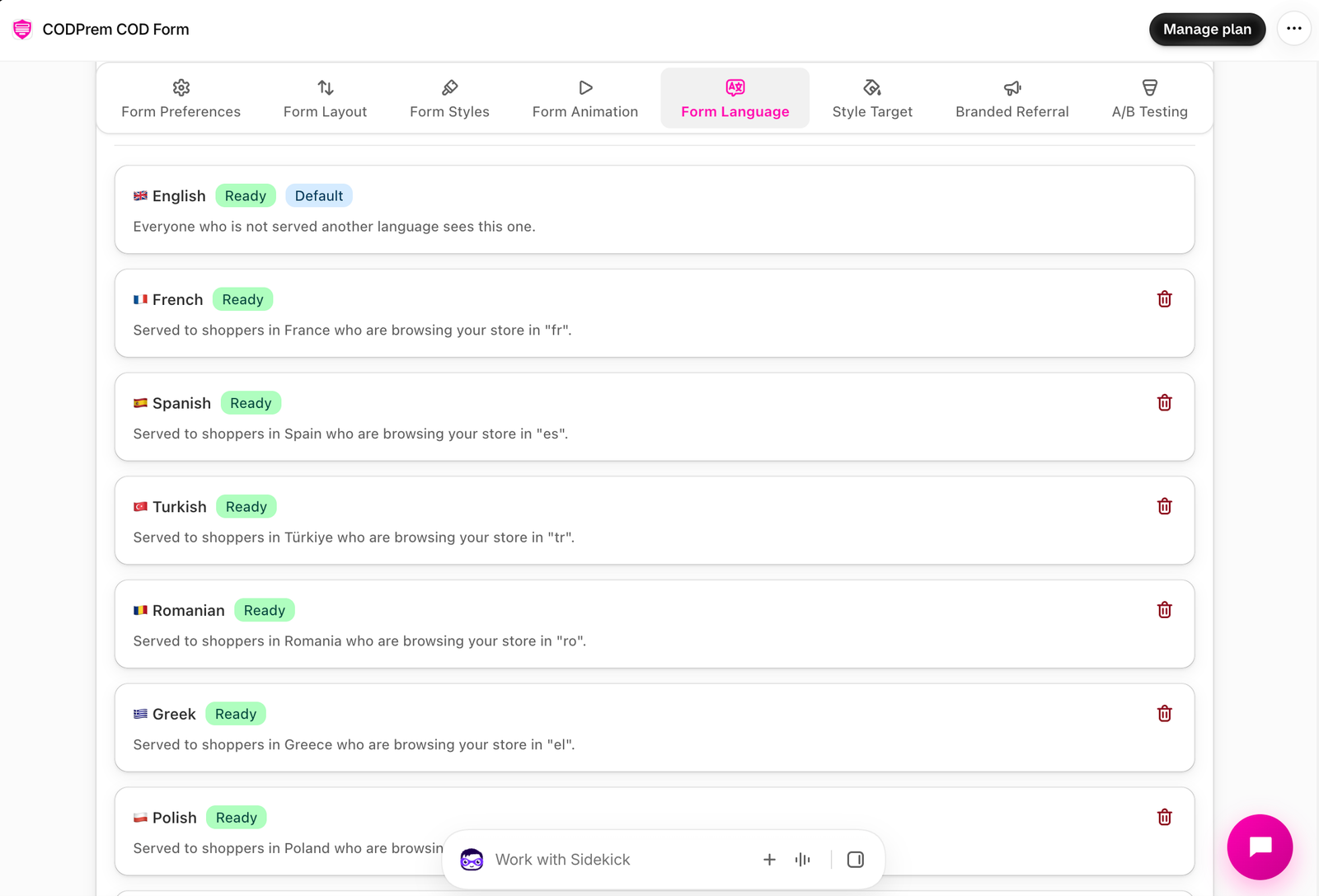
Who sees which language
- Match each shopper to their language — a shopper sees their own language when it’s on your list, and your source language otherwise.
- Show one language to everyone — every shopper sees your source language. Your other languages keep their translations and come back when you switch.
The Who sees what table shows exactly what your form will do once you save.
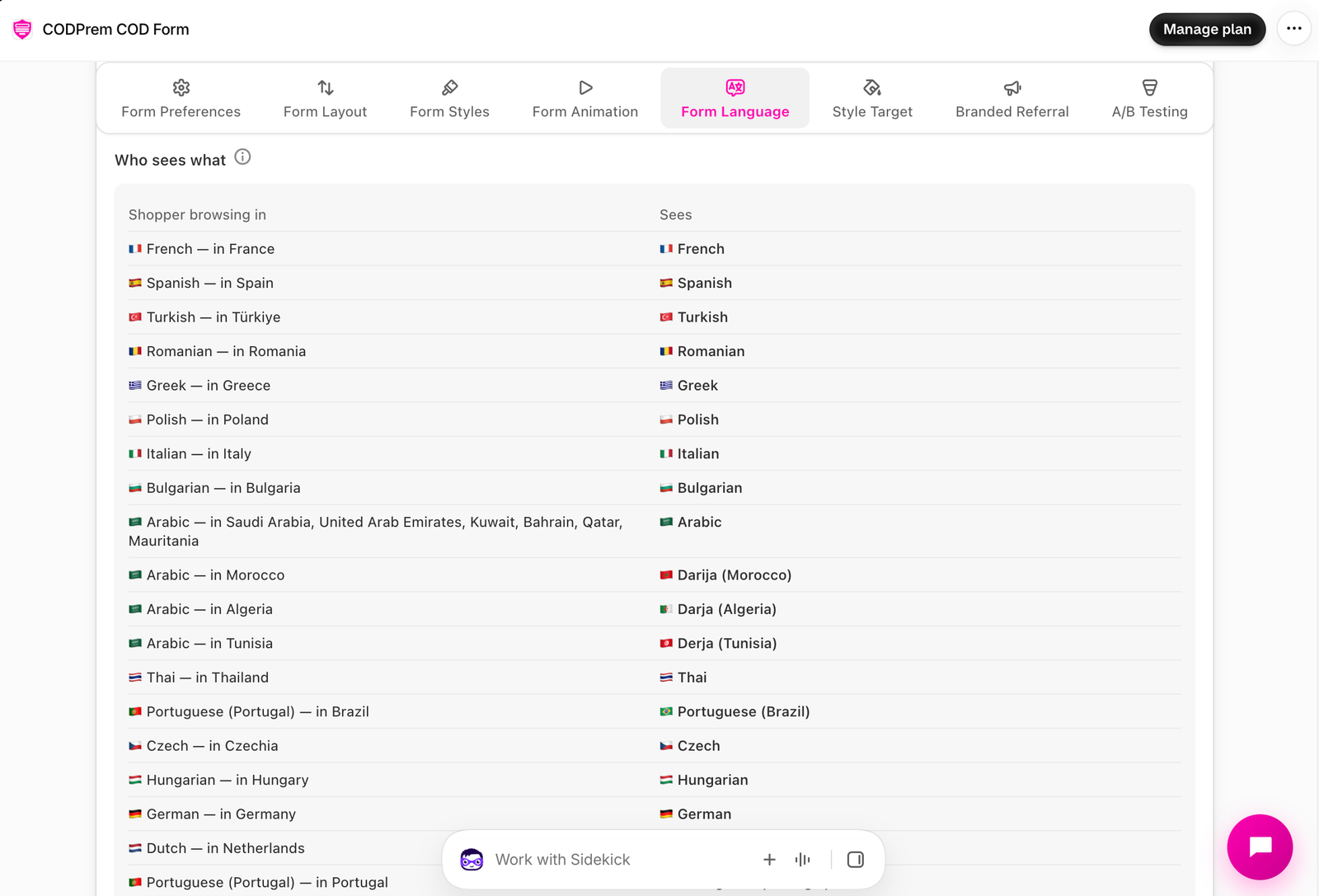
Publish languages in Shopify
A shopper reaches a language when they browse your store in it. Publish the language in Shopify Settings → Languages. A language Shopify doesn’t have, or you haven’t published, shows a warning.
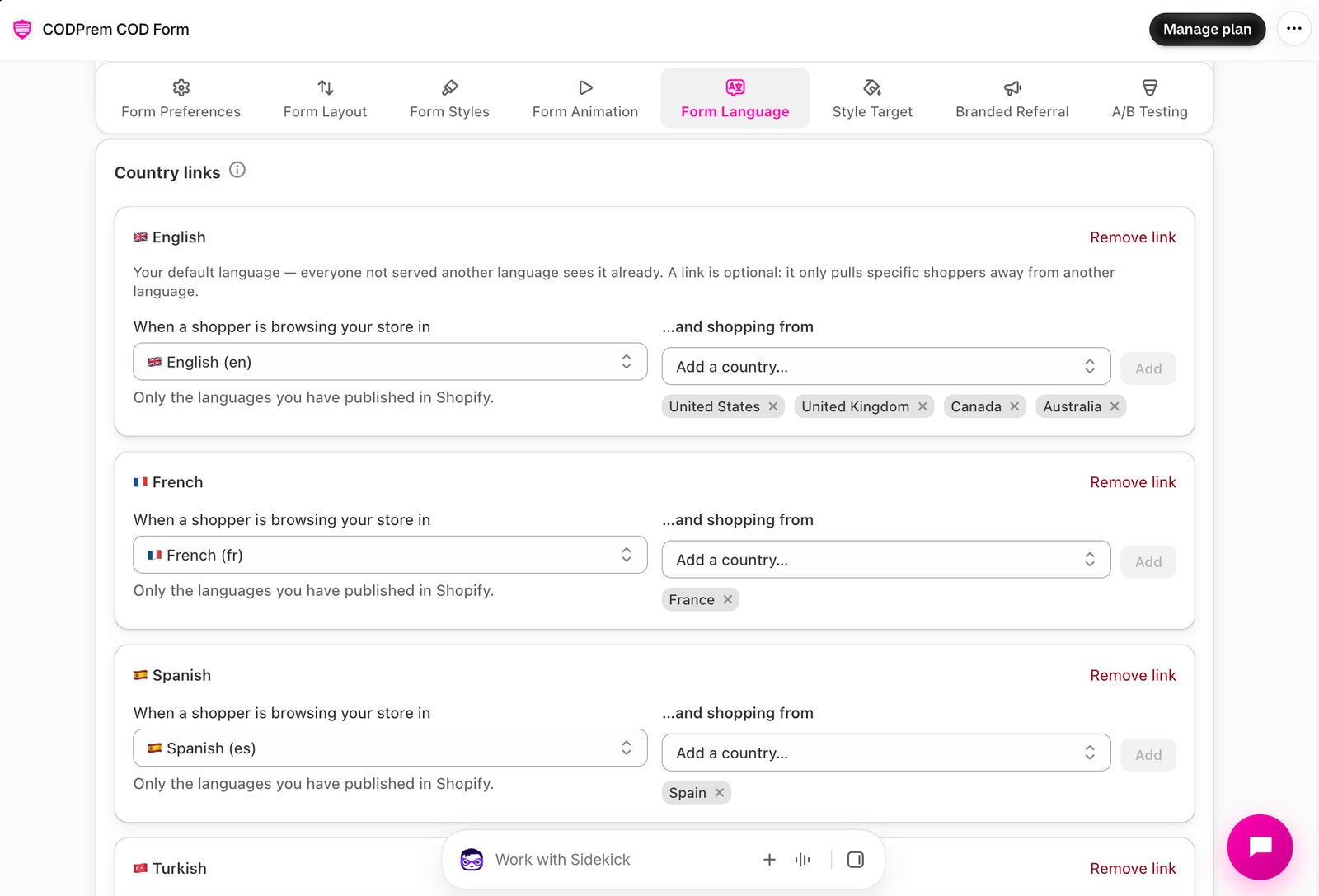
Country links
For languages Shopify has no store language for — like Darija, Algerian or Tunisian Arabic — add a Country link: “a shopper in Morocco browsing in Arabic sees Darija”. A link needs both a store language and at least one country. Darija, Algerian, Tunisian and Egyptian Arabic come with their link ready.
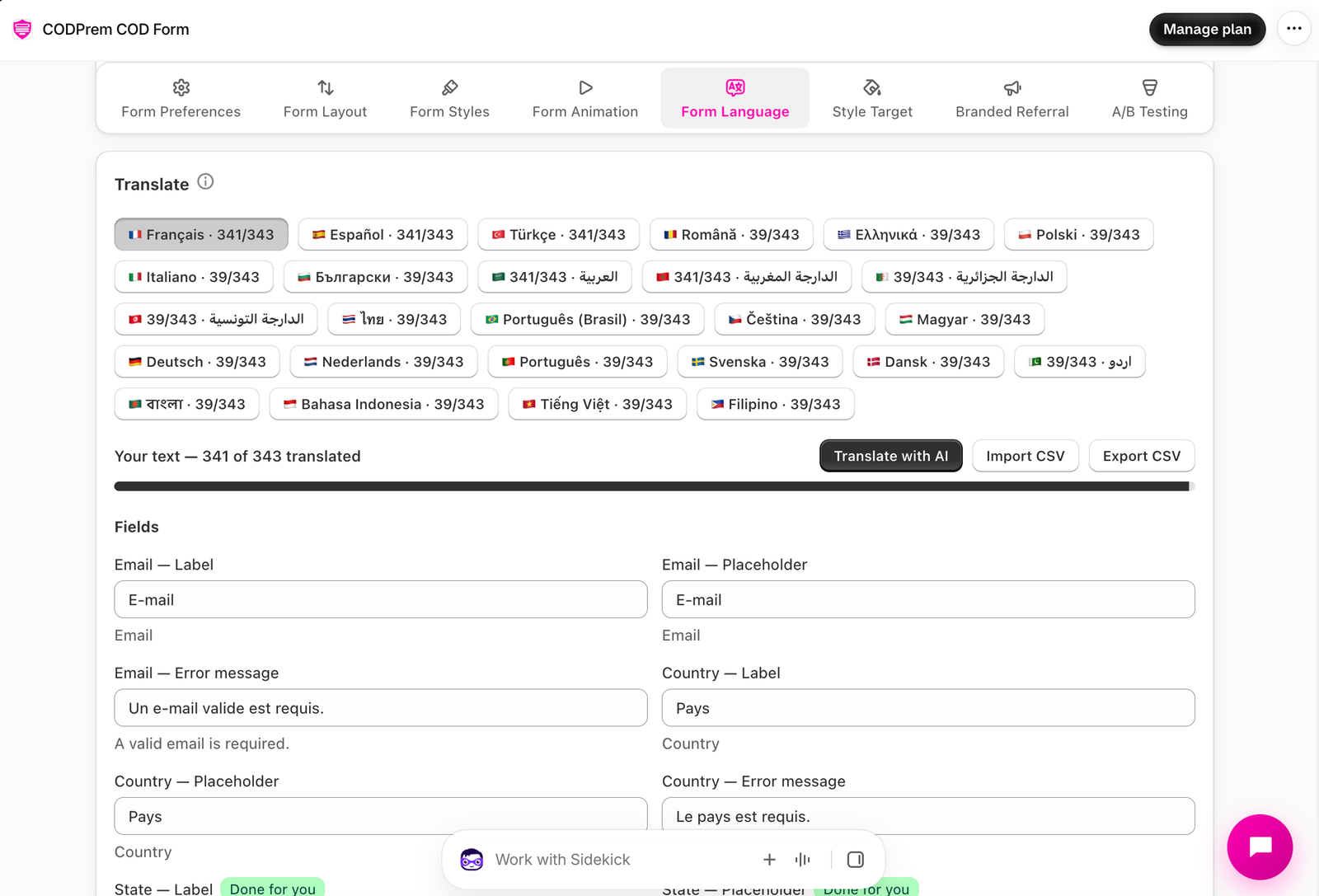
Translate your own text
Open a language and fill the boxes under Your text — your form title, banner, offer titles, badges, FAQ, thank-you text and more. Anything you leave blank shows in your source language, one line at a time, so a half-finished language is safe to switch on.
- Translate with AI (CODPrem Go and above) — fills every empty box with a draft. Read them, change anything, then save.
- Import CSV / Export CSV — translate in a spreadsheet, or copy a language to another store.
- App text — reword any of CODPrem’s own wording in that language.
If you later change the original text, its translation is marked Source changed and shoppers see your new original until you update it.
Right-to-left
Arabic, Hebrew, Persian and Urdu forms are mirrored automatically. Choose how much in Form Builder → Form Preferences → Apply right-to-left to.