
Form title, top banner, stock rules, order processing, tax, autofill and test mode.
Go to Settings → General. Save with the bar at the top of the page.
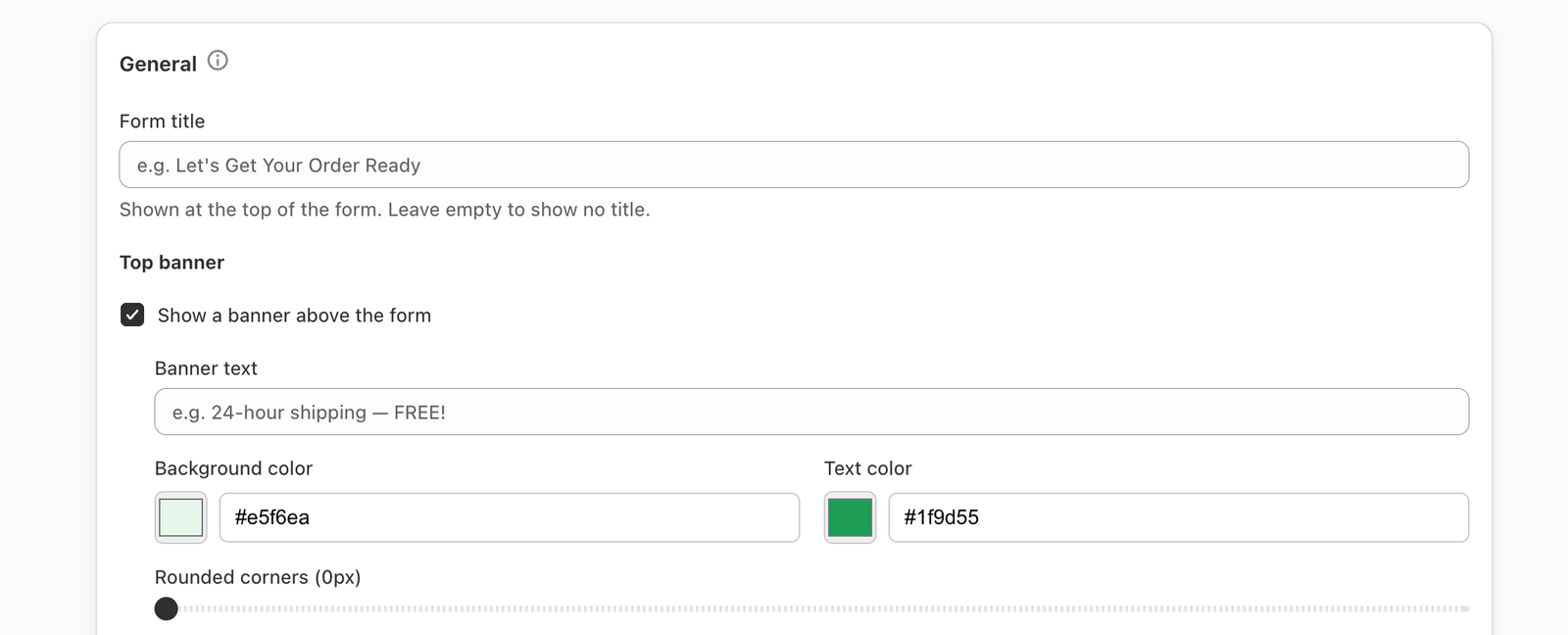
Form title and top banner
- Form title — shown at the top of the form, e.g. “Let’s Get Your Order Ready”. Leave empty for no title.
- Show a banner above the form — a coloured strip with your Banner text (e.g. “24-hour shipping — FREE!”), its colours and rounded corners.
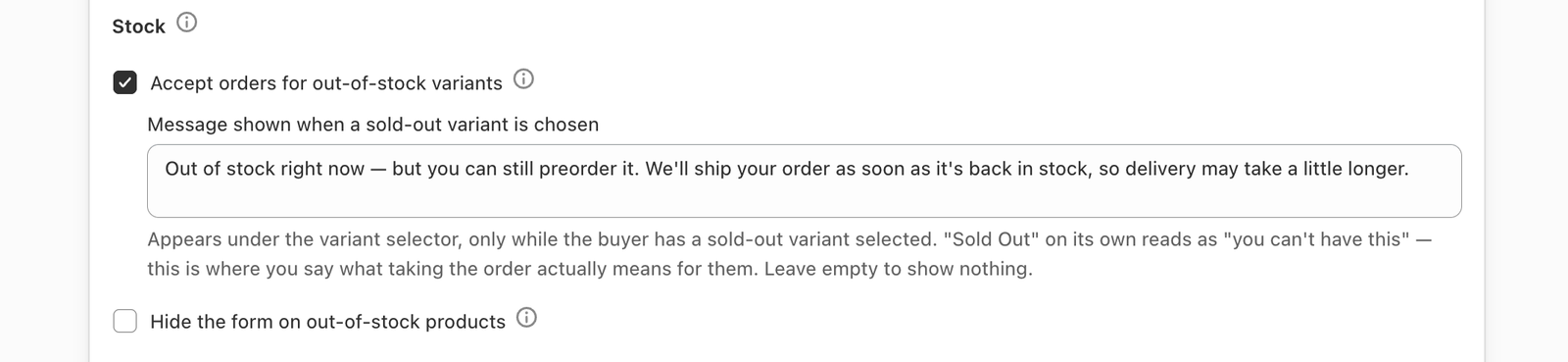
Stock
Sold-out variants are always labelled on the form. Beyond that:
- Accept orders for out-of-stock variants — on, buyers can order a sold-out variant anyway (useful if you restock fast). Add a Message shown when a sold-out variant is chosen to explain, e.g. a preorder delay.
- Hide the form on out-of-stock products — when every variant is sold out, CODPrem stays off that page and your theme’s own sold-out handling takes over.
Order processing
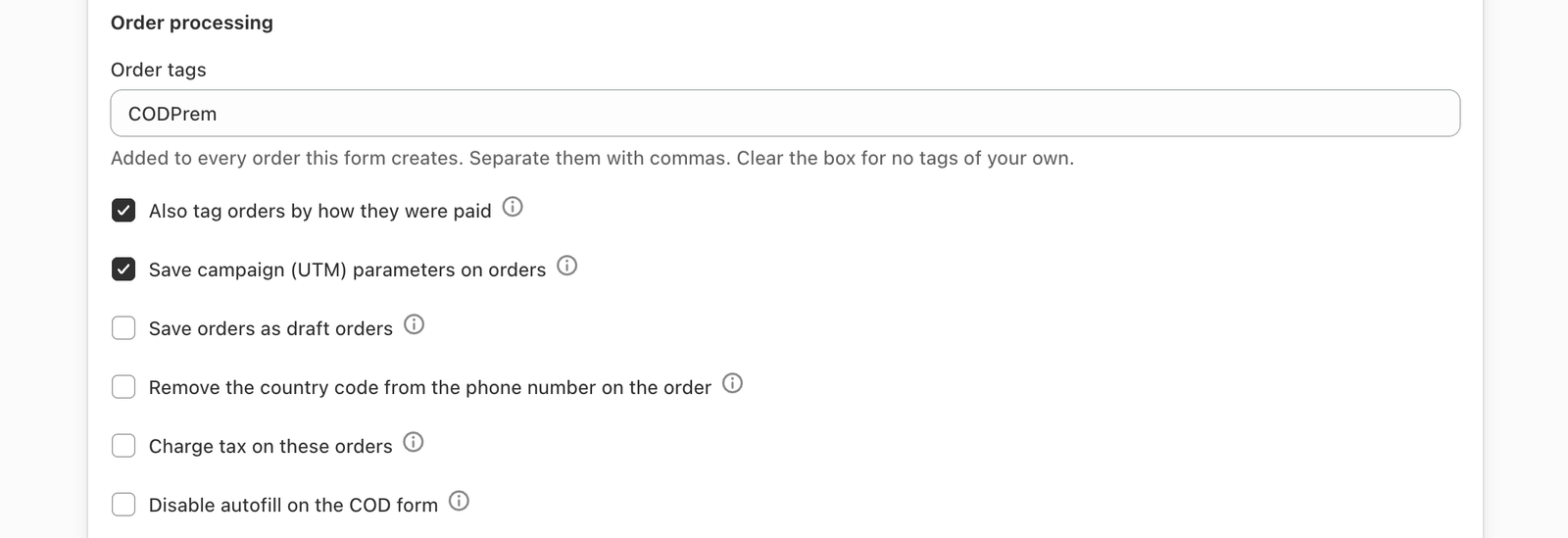
- Order tags — added to every order the form creates, separated by commas (default
CODPrem). - Also tag orders by how they were paid — adds
COD,Prepaidor the WhatsApp tag depending on the button pressed. - Save campaign (UTM) parameters on orders — records which ad campaign brought the buyer onto the order.
- Save orders as draft orders — orders wait in Shopify as drafts until you complete them. Drafts don’t reserve stock, get no order number until completed, and don’t appear in sales reports.
- Remove the country code from the phone number on the order — the delivery address carries the local number (0612345678 rather than +212612345678), for couriers whose systems expect it.
- Charge tax on these orders — on, Shopify calculates tax as for any order. The form shows a Tax line only when Shopify will actually charge one for the buyer’s country. If Shopify isn’t collecting tax for your countries, a notice tells you to add them in Shopify Settings → Taxes and duties.
- Disable autofill on the COD form — stops the browser offering saved names and addresses.
Test mode
Hide the form from shoppers while you set it up — only you see the form, by adding ?codprem_preview=1 to a product page address. See Test your form before going live.
Account emails
Email me about my account — emails from CODPrem about your order limit, your trial, and your form being switched off on a new theme. They go to the email on your Shopify account. The email telling you your form has stopped taking orders is always sent.
