
See the shoppers who typed their phone number and left without ordering, and call them back.
Go to Abandoned Leads.
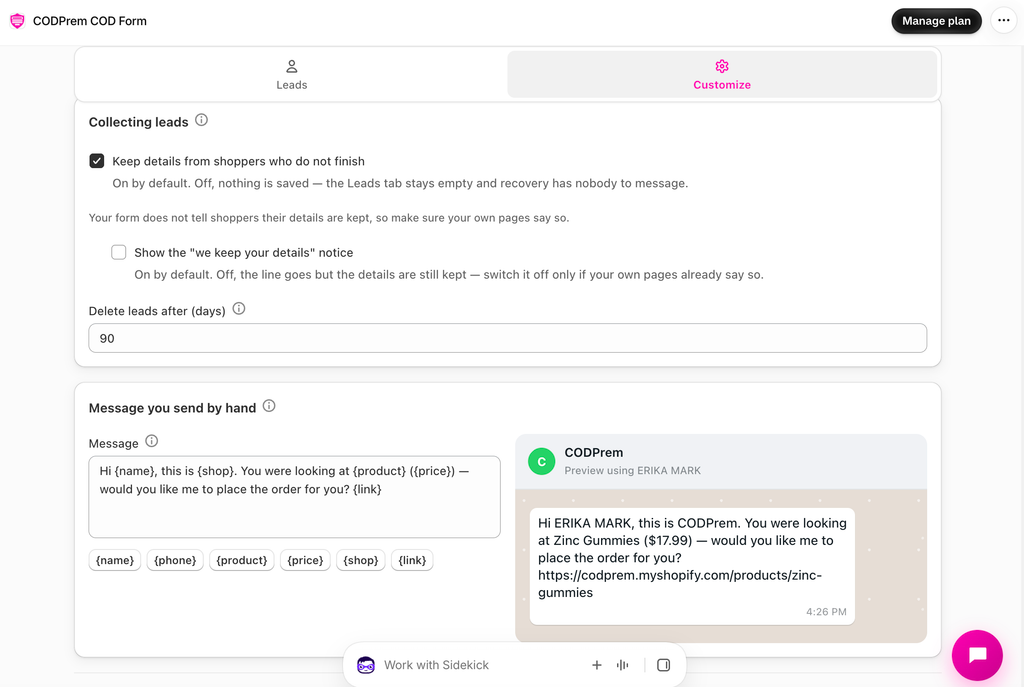
Collecting leads
On the Customize tab:
- Keep details from shoppers who do not finish — on by default. A shopper who types a phone number into your form and leaves is saved as a lead. Off, nothing is saved.
- Show the “we keep your details” notice — a short line under Place Order telling shoppers their details are kept, linking your privacy policy. Switch it off only if your own pages already say so.
- Delete leads after (days) — between 7 and 365. Leads are deleted automatically after that.
- Message you send by hand — what the WhatsApp button on each lead opens with. Tags:
{name},{phone},{product},{price},{shop},{link}(the page they left).
The Leads list
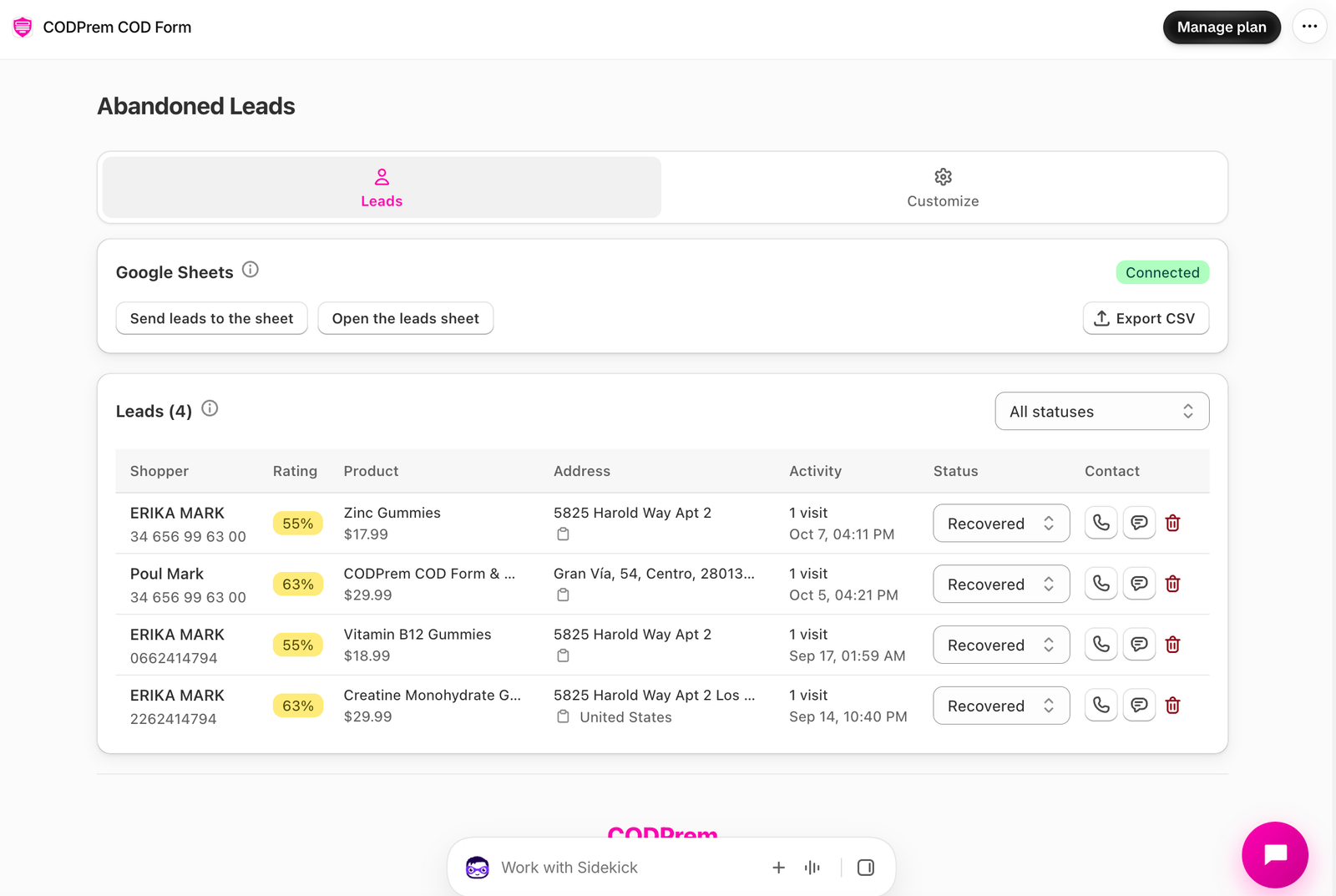
Each lead shows:
- Shopper — name and phone.
- Rating — how complete and consistent their details look: Looks real, Unclear or Thin, with the reasons on hover. It never hides anyone — read it before you dial, not instead of dialling.
- Product they were looking at, Address (with a copy button), Activity (visits).
- Status — New, Called, Recovered or Lost. Change it as you work the list.
- Contact — call, or open WhatsApp with your message typed.
Filter by status at the top. A shopper who completes their order is marked Recovered automatically.
Export
- Export CSV — download the list.
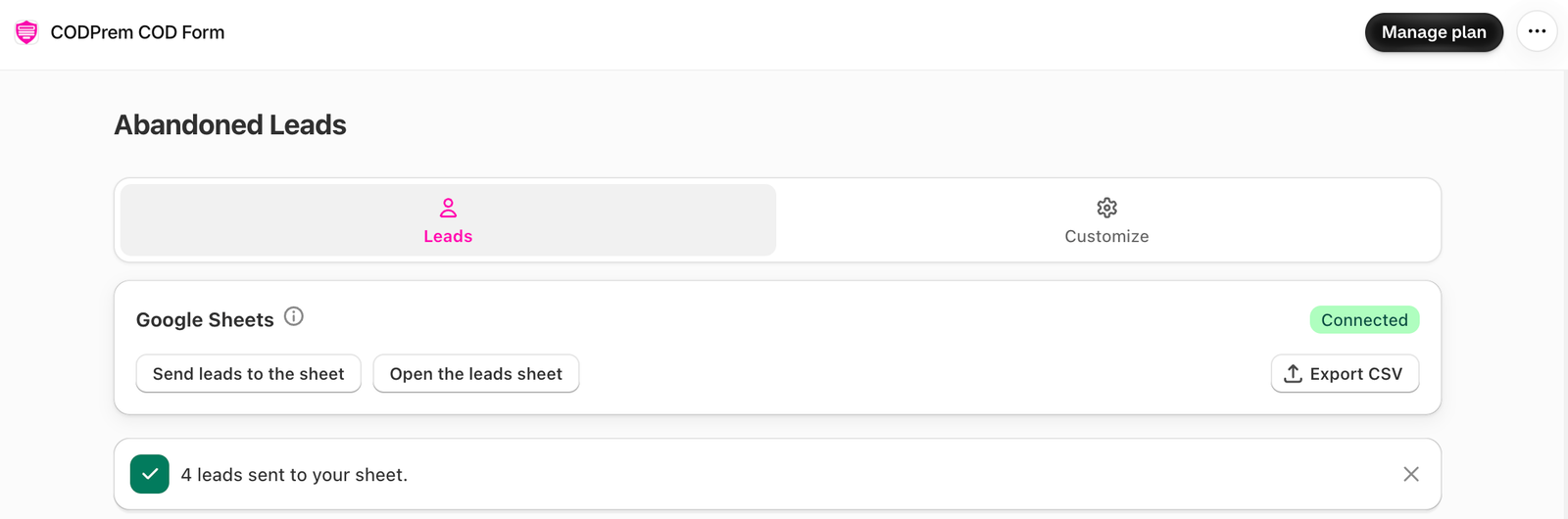
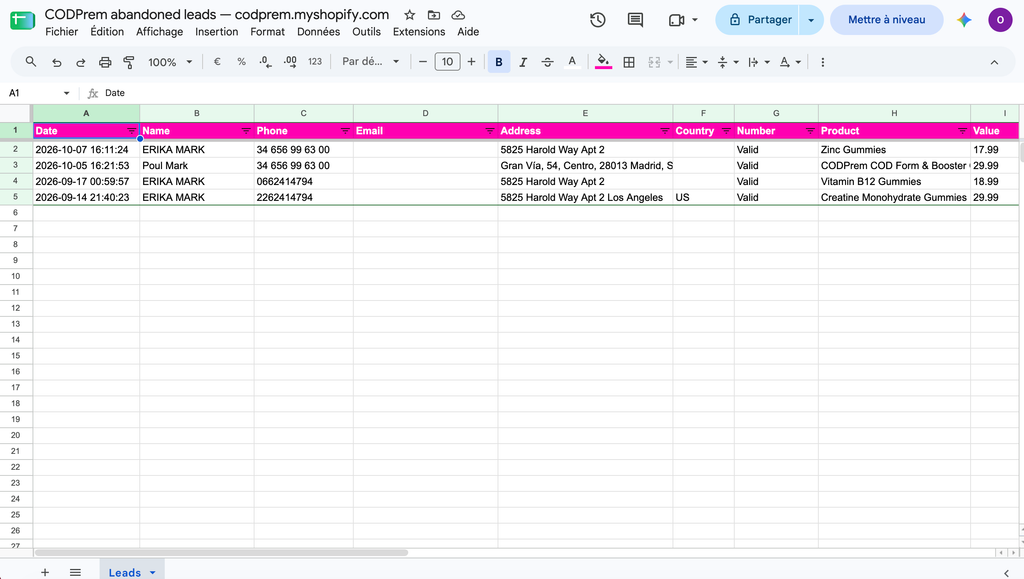
- Send leads to the sheet — writes your leads to their own spreadsheet in your Google Drive (connect Google once on Integrations → Google Sheets). Pressing it again rewrites the sheet rather than adding a second copy.
Deleting a lead
Press the bin on a row to remove the shopper’s details permanently.
Privacy
Leads are other people’s phone numbers. Keep the retention window as short as your follow-up needs, and keep the notice on unless your privacy policy already covers it.