
Put every block of the form in the order you want, and hide the ones you don’t.
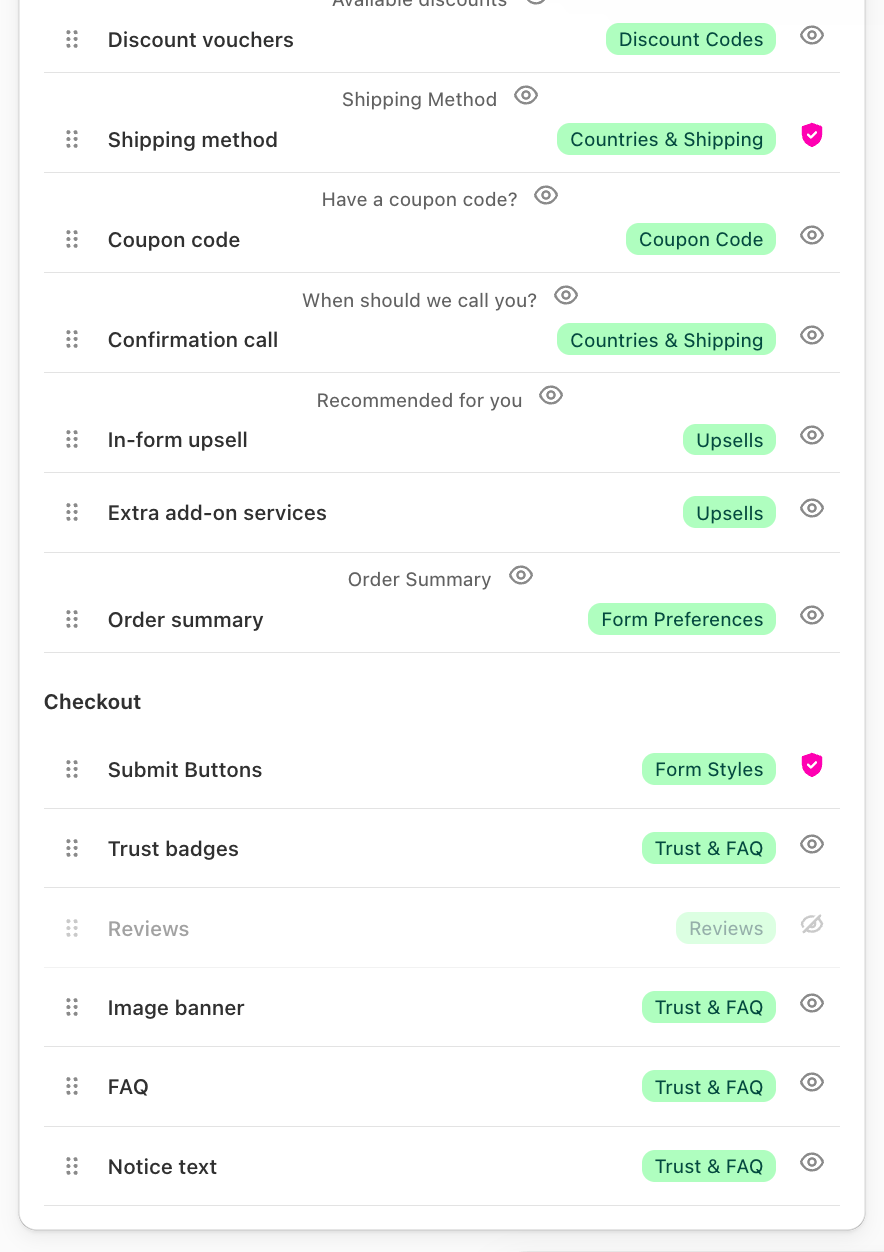
Go to Form Builder → Form Layout. The list shows every block currently on your form, with a CODPrem Form Preview beside it that redraws as you change things.

The three groups
| Group | What goes there |
|---|---|
| Offers | The product card, variant picker, quantity tiers, bundles, cross-sell, features — what the buyer decides on. |
| Form | The fields, add-on services, shipping choice, order summary. |
| Checkout | The Place Order button and what surrounds it — trust badges, reviews, FAQ, the image banner. |
In Hybrid Form, the Offers group is what shows on the product page; everything from Form onward opens behind the button.
Move a block
Drag a row up or down within its group. Some blocks can move to another group from their own settings — look for Show … in (Offers / Form / Checkout) on the order summary, product card, quantity selector, USP carousel, features and image banner.
Hide a block
Press the eye on a row to keep that block off the form. The row stays in the list, dimmed, so you can show it again in one click — your settings for it are kept. A hidden block is also not charged: hiding quantity tiers removes them from the order too.
The shipping choice and the fields can’t be hidden here; they show a shield instead. To remove shipping, use Settings → Countries & Shipping → Hide shipping options.
Hide a heading
Some rows have a second icon to hide just that block’s heading and keep the block itself.
Blocks you can’t find in the list
Only blocks that are on the form are listed. Switch a feature on (for example add a review in Conversion Boosters → Reviews) and it appears here in its default place.
Theme Mode and the Fields Editor
The Theme Mode picker and the Fields Editor sit on this same tab, so you can watch the preview change as you pick colours and fields.