
Choose which details the form asks for, their order, wording and whether they’re required.
Go to Form Builder → Form Layout → Fields Editor. Press the arrow on the card to expand it.
Standard Mode or Short Mode
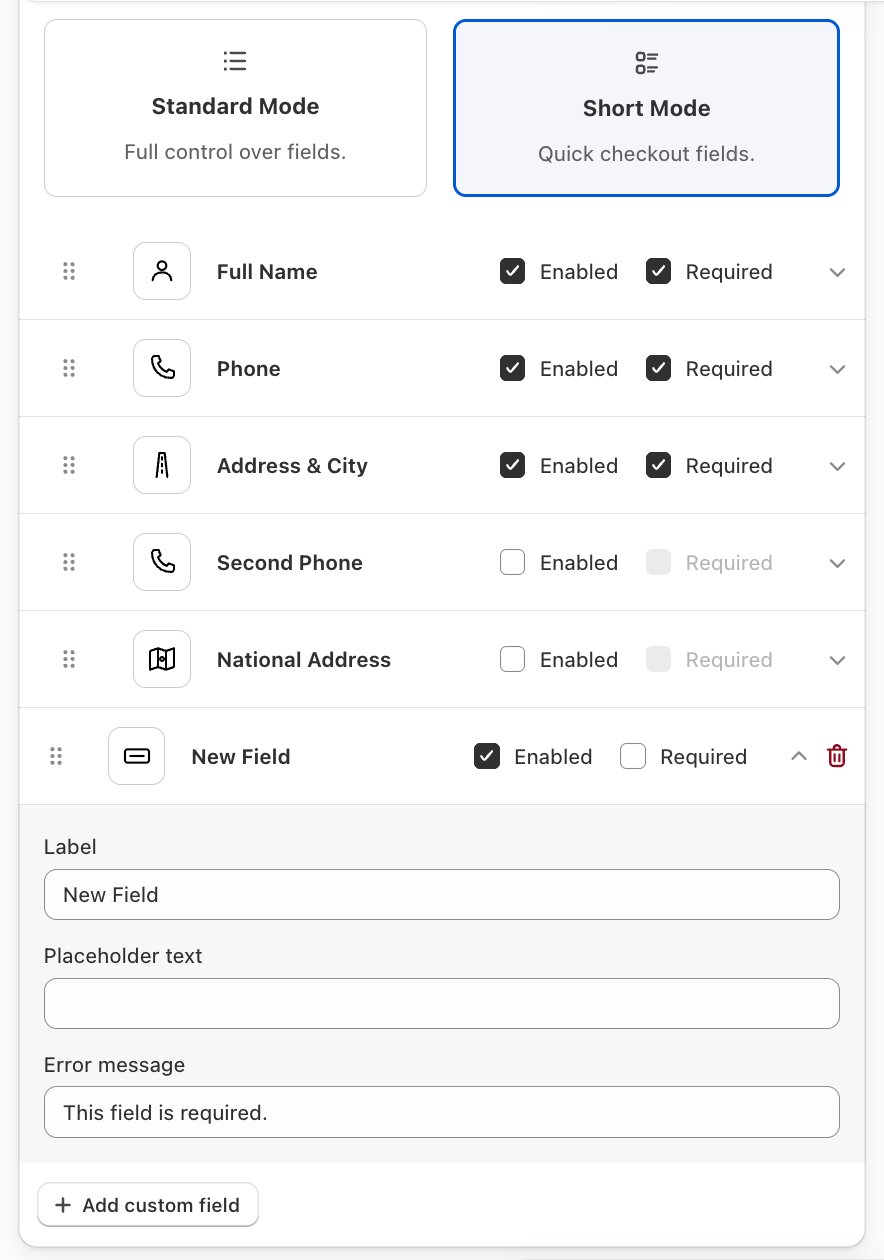
- Standard Mode — full control: name, email, phone, country, address, city, state and ZIP, plus any custom field you add.
- Short Mode — the fewest fields that can take an order (name, phone and a combined address/city field). You can also switch on Second Phone and National Address.
Short Mode collects no country, so it needs exactly one country in Settings → Countries & Shipping → Select Form Countries. If you deliver to several countries, use Standard Mode with the Country field on. A notice at the top of Form Builder tells you when the country can’t be worked out.

Edit a field
Each row has:
- Drag handle — drag to reorder.
- Enabled — show or hide the field.
- Required — the buyer can’t order without it.
- Edit settings — change the Label, Placeholder text and Error message, and pick an icon.
Name and Phone can’t be removed — switch fields off rather than deleting them.
[SCREENSHOT: Form Builder – Form Layout – Fields Editor field settings open]
Add a custom field
Press Add custom field to ask for anything else — a delivery date, a landmark, a company name. Custom answers are saved on the order as attributes, so you see them on the Shopify order and in your Google Sheet.
Set your fields up before connecting Google Sheets: the sheet is created with a column for every field. Add one later and press Update columns on Integrations → Google Sheets.
Why Address comes before City, State and ZIP
With Google address autocomplete on, picking a suggestion fills City, State and ZIP for the buyer — but only if they haven’t typed in them yet. Keep Address above those fields.
Country and State
Country and State are real dropdowns from Shopify’s own country list, filtered by the countries you deliver to. State shows the country’s provinces, or a text box for countries with none.
Translating field text
Field labels you haven’t changed are translated automatically into every Form Language. Text you write yourself is translated in Form Builder → Form Language.