
Your form only appears on your store once the CODPrem app embed is switched on in your theme.
The app embed is the piece of CODPrem that lives inside your Shopify theme. It finds the theme’s Buy it now button on each product page and puts your form in its place. It is switched on once per theme.
Switch it on
- In CODPrem, open Quick Start and go to the Go live step, or press Enable form on the Dashboard’s “Your form is not live yet” banner.
- Press Open theme editor. Shopify opens your theme with the app embeds panel.
- Find CODPrem COD Form under App embeds and switch it on.
- Press Save in the top-right of the theme editor.
- Go back to CODPrem and press Check again.
You can also do it by hand: Online Store → Themes → Customize → App embeds (the icon in the left sidebar).
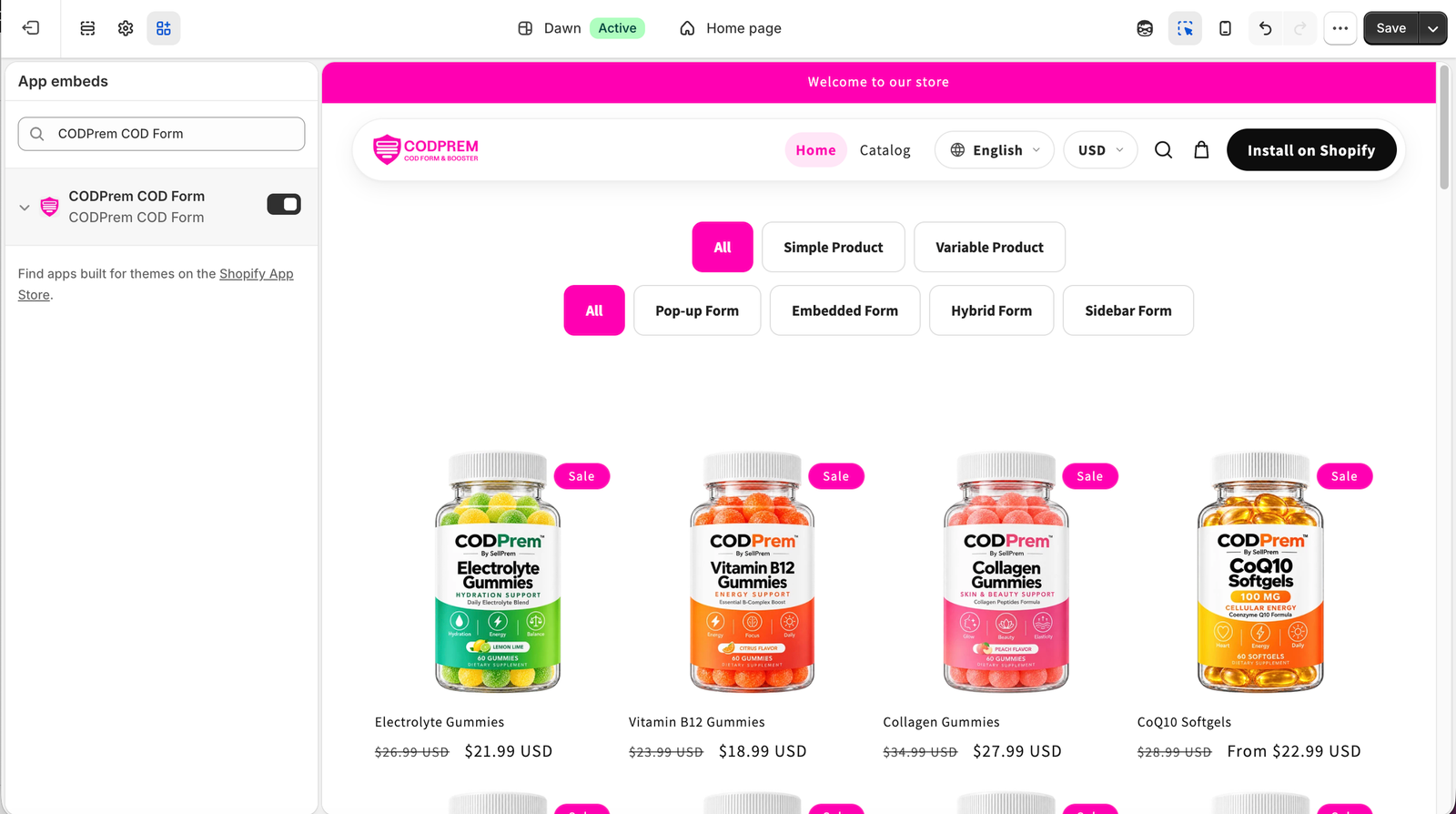
When you change or publish a theme
The embed is saved per theme. If you publish a new theme or a duplicate, the embed starts off on that theme and your buyers see the theme’s normal buttons again. Switch it on in the new theme the same way. The Dashboard shows a banner while the embed is off on your published theme.
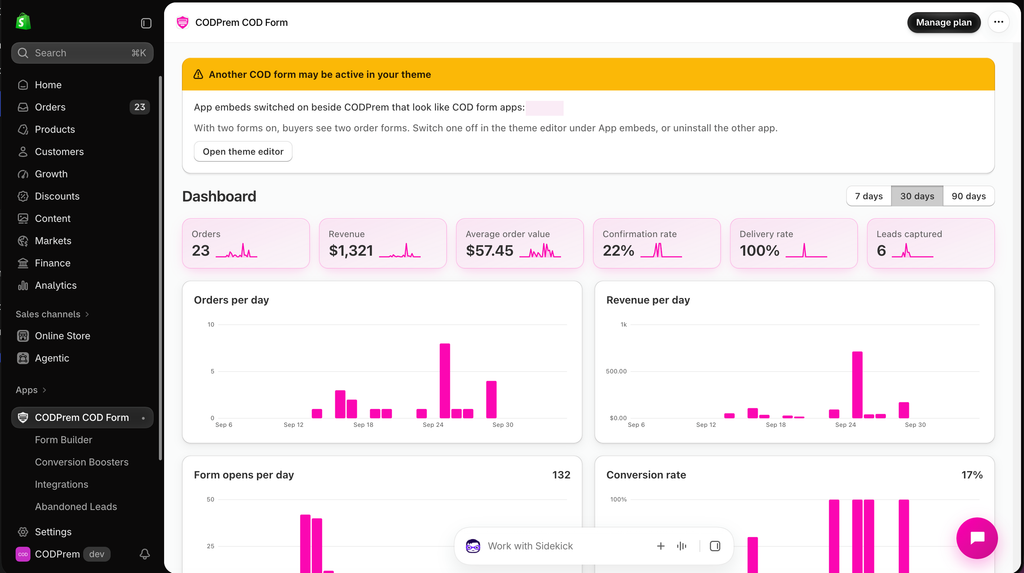
Another COD form app is also on
If another COD form app’s embed is switched on beside CODPrem, buyers see two order forms. CODPrem shows a warning on the Dashboard naming the other embed. Switch one of them off in the theme editor under App embeds, or uninstall the other app.
Still not seeing the form?
- Check Settings → General → Test mode. While Hide the form from shoppers while you set it up is ticked, only you can see the form, using the preview link.
- Check Settings → Product visibility — a product left out there keeps its normal Shopify buttons.
- Check Fraud Prevention → Delivery Area — if it is limited to some countries, visitors from elsewhere see your normal checkout.
- If Settings → Advanced → Form placement is Cart page only, product pages show no form by design.