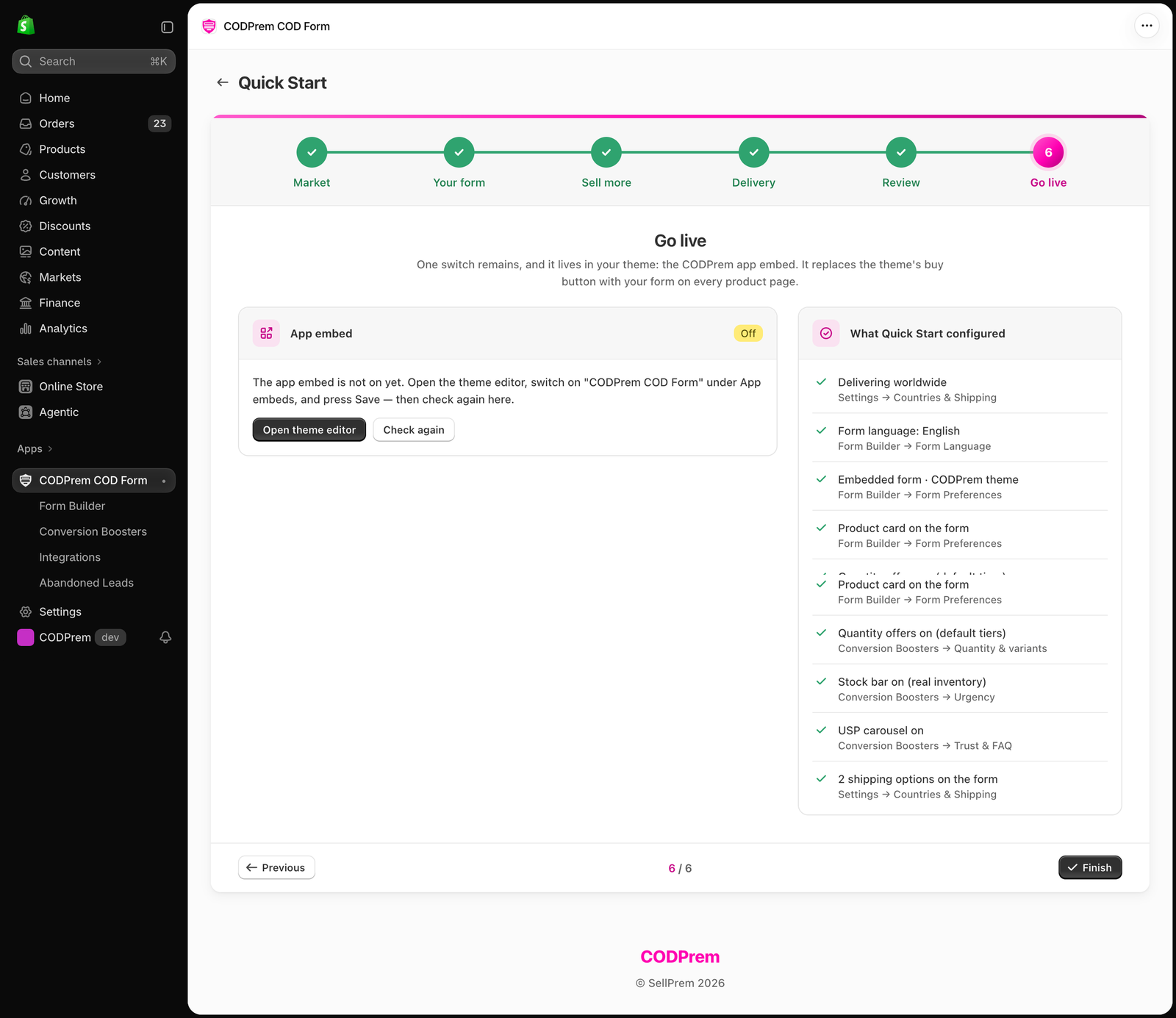
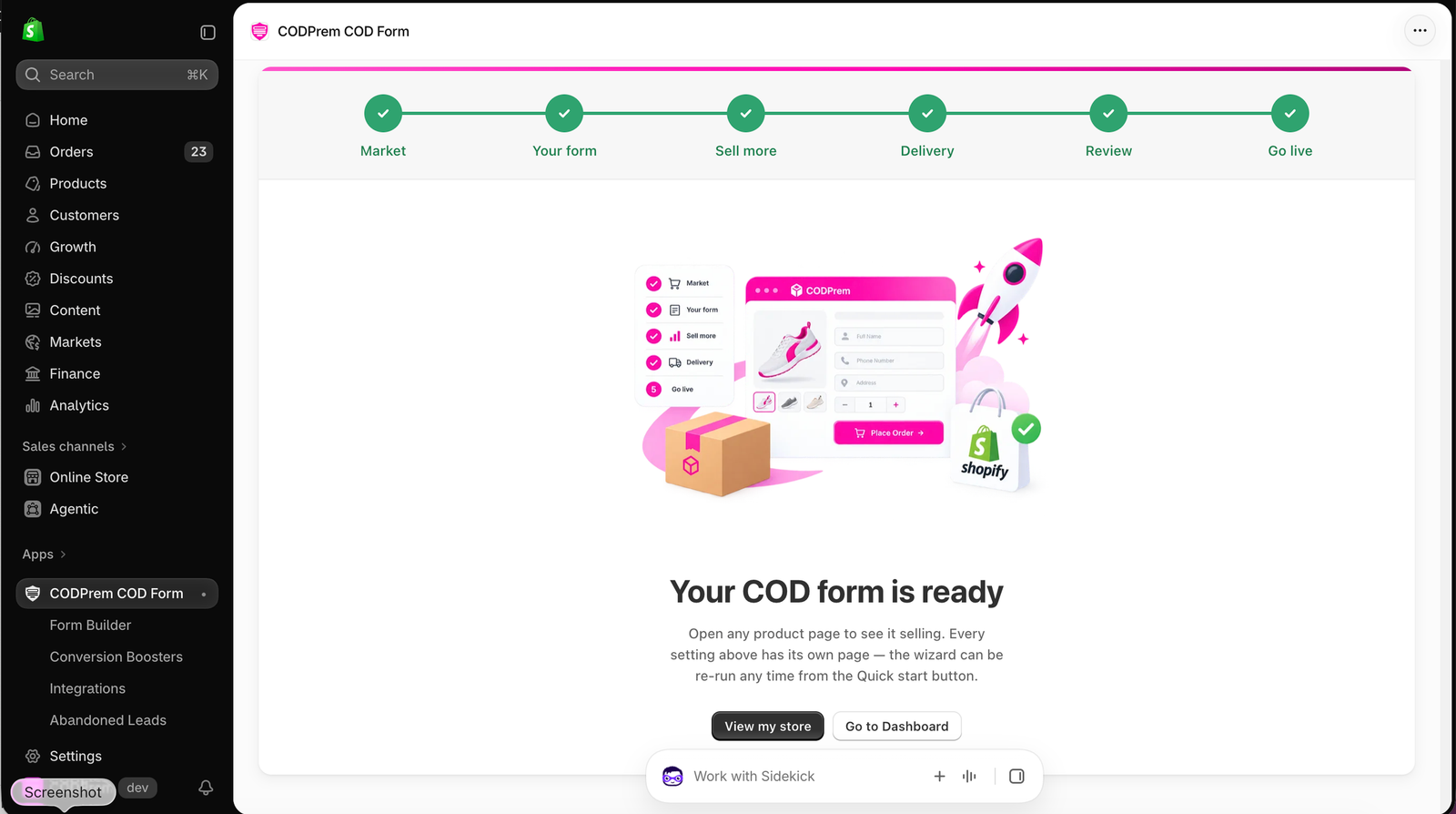
Quick Start is a six-step setup that configures your market, your form, your first offers and delivery, then puts the form live on your store.
Open it from the Quick Start banner on the Dashboard, or the Quick start button in the app’s title bar. You can run it again at any time from Settings → Advanced → Quick Start. Each step shows what your form does today and changes only what you edit, so re-running it never undoes work you did on the other pages.
Press Save & continue at the bottom of each step. Previous takes you back.

Step 1 — Market
- Delivery countries — tick I deliver worldwide, or search and pick the countries you deliver to. This sets the form’s country field and the phone number check.
- Your form’s language — the language the form is written in. CODPrem suggests one from the countries you picked (for example Darija for Morocco). The form ships translated in 28 languages, right-to-left included.
Choose where your buyers are, not where you are based.
[SCREENSHOT: Quick Start – Market step]
Step 2 — Your form
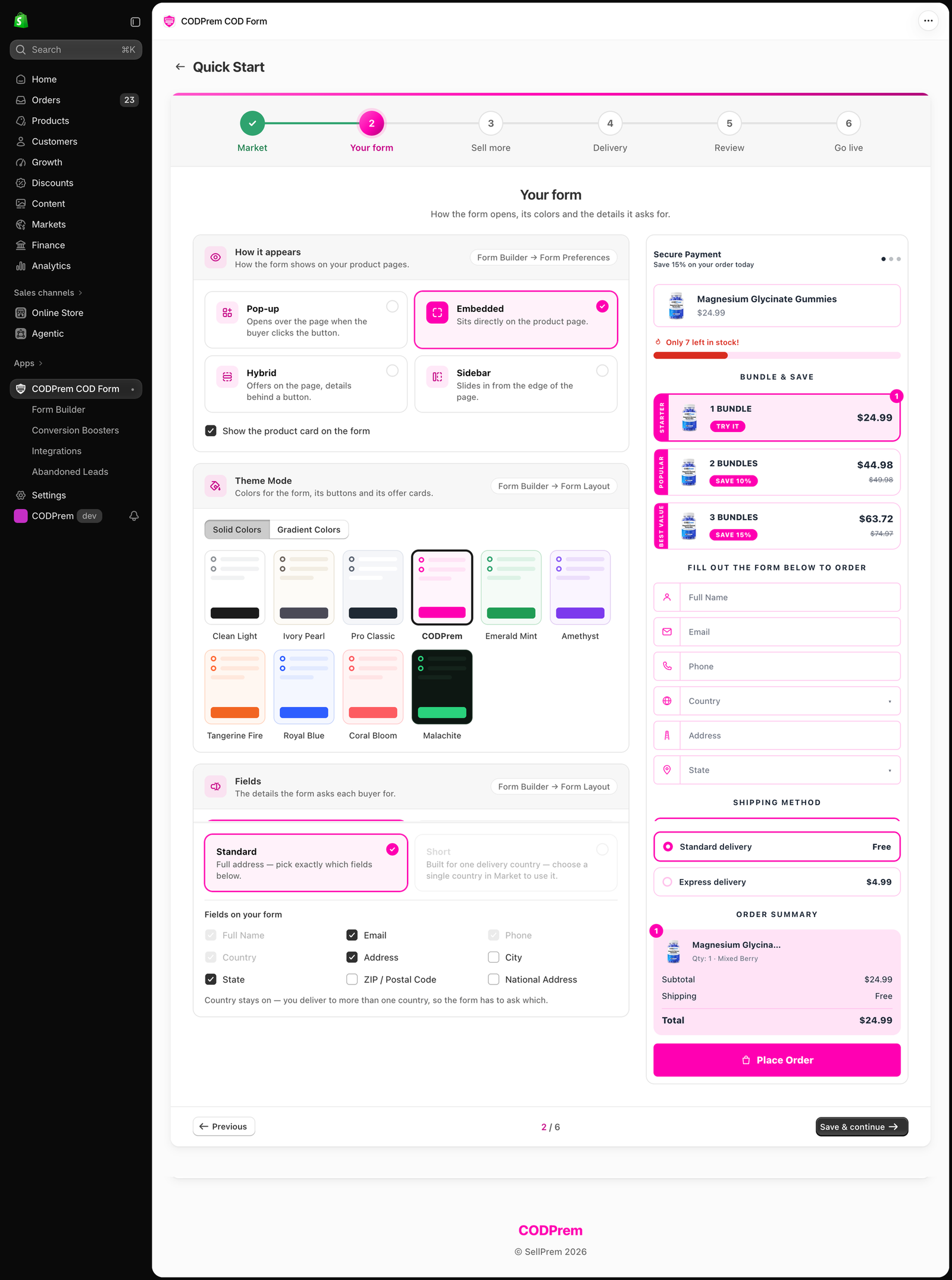
- How it appears — Pop-up, Embedded, Hybrid or Sidebar. See Choose how your form opens.
- Show the product card on the form — a card with the photo, name and price at the top of the form.
- Theme Mode — the colours of the form, its buttons and offer cards.
- Fields — Standard (full address; you pick which fields) or Short (three fields only). Short is available only when you deliver to exactly one country. If you deliver to more than one country, the Country field stays on, because the form has to ask which one.
The preview on the right redraws as you click.
Step 3 — Sell more
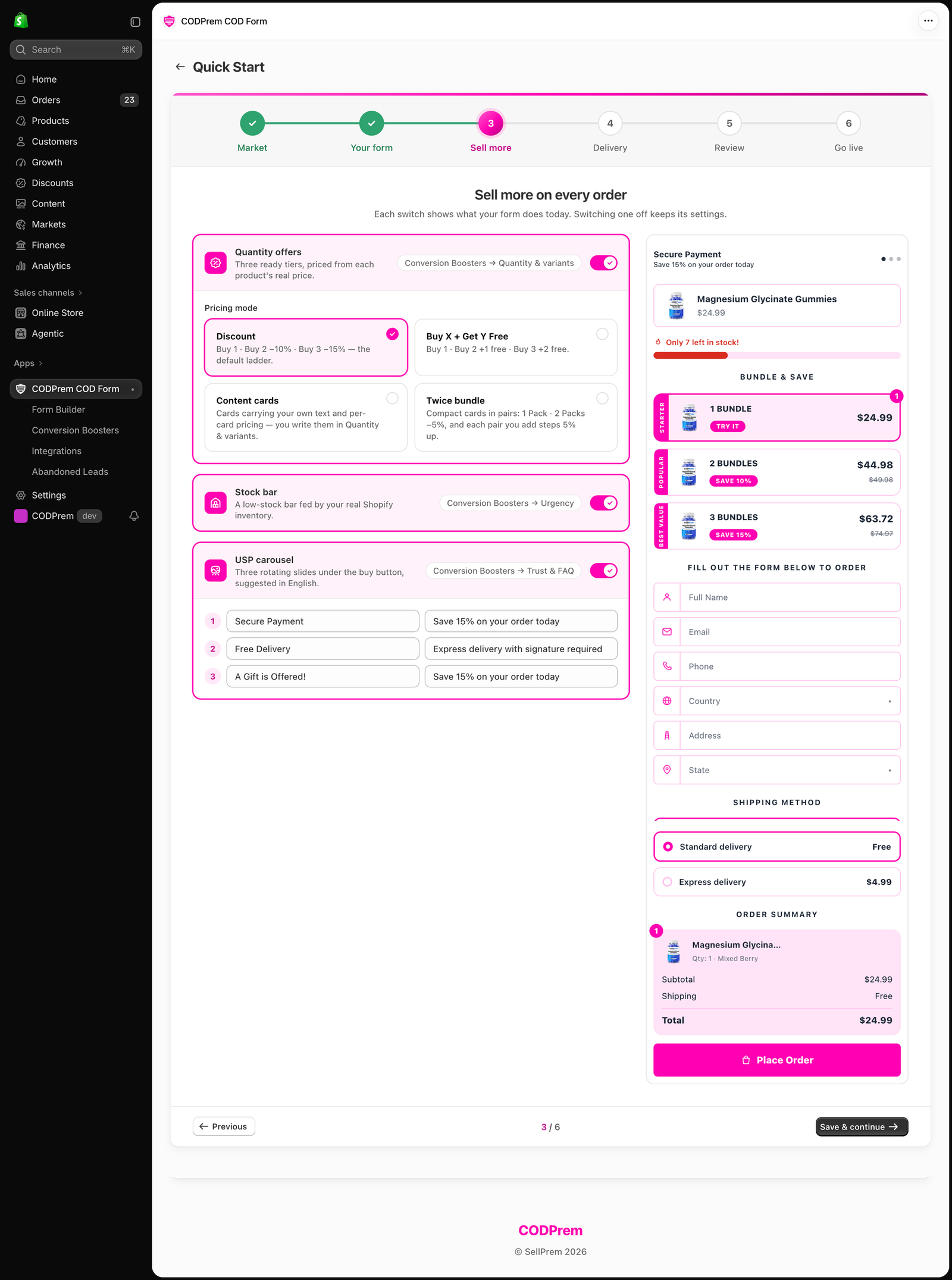
Each switch shows what your form does today.
- Quantity offers — three ready tiers, priced from each product’s real price. Pick a Pricing mode: Discount, Buy X + Get Y Free, Content cards or Twice bundle.
- Stock bar — a low-stock bar fed by your real Shopify inventory.
- USP carousel — three rotating slides under the buy button, suggested in your form’s language. You can edit the title and subtitle of each before saving.
Switching one off keeps its settings.
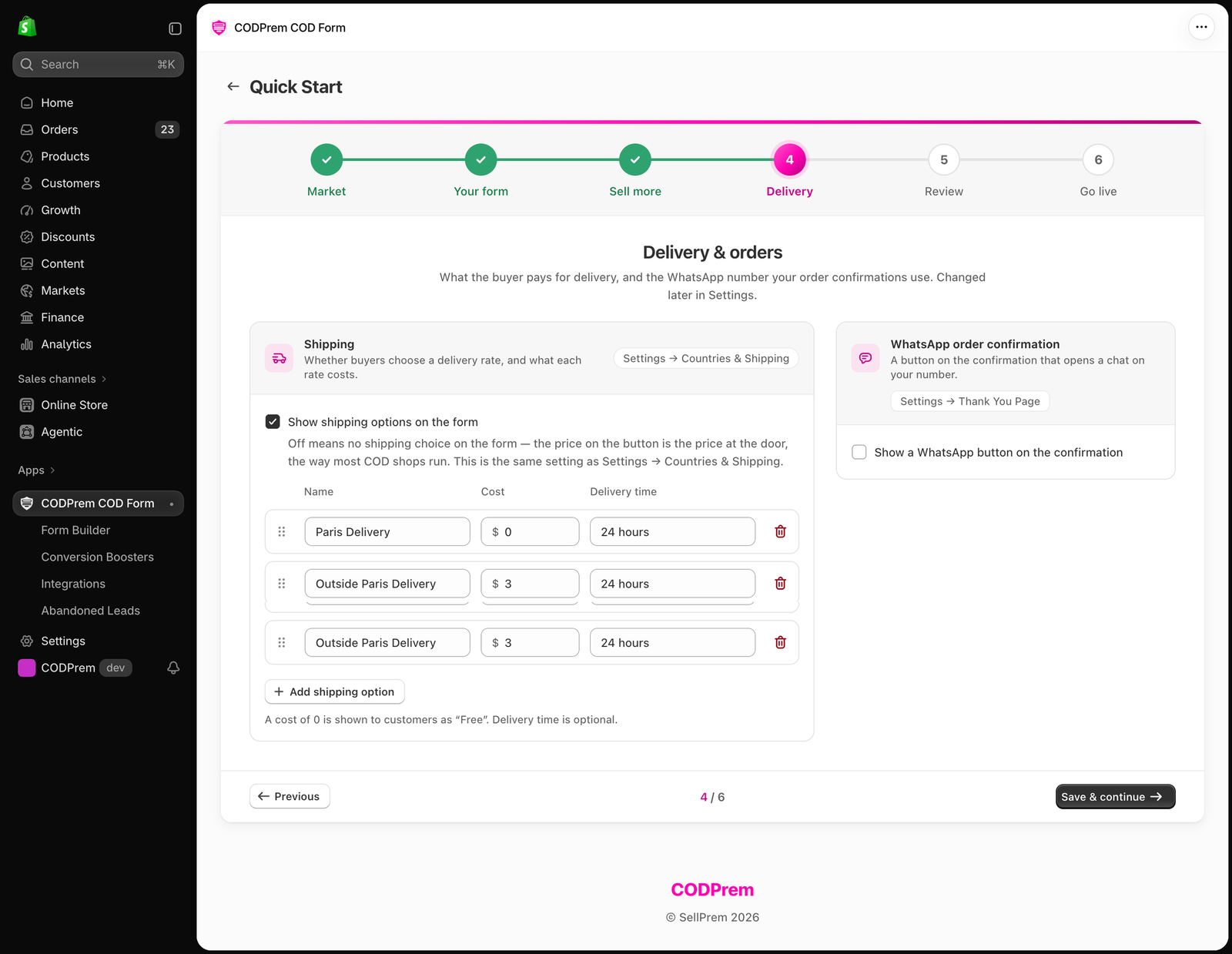
Step 4 — Delivery
- Show shipping options on the form — off means no delivery choice on the form: the price on the button is the price at the door, the way most COD shops run. On, you set the rates.
- WhatsApp order confirmation — a button on the confirmation that opens a chat on your number. Enter it with the country code first.
Step 5 — Review
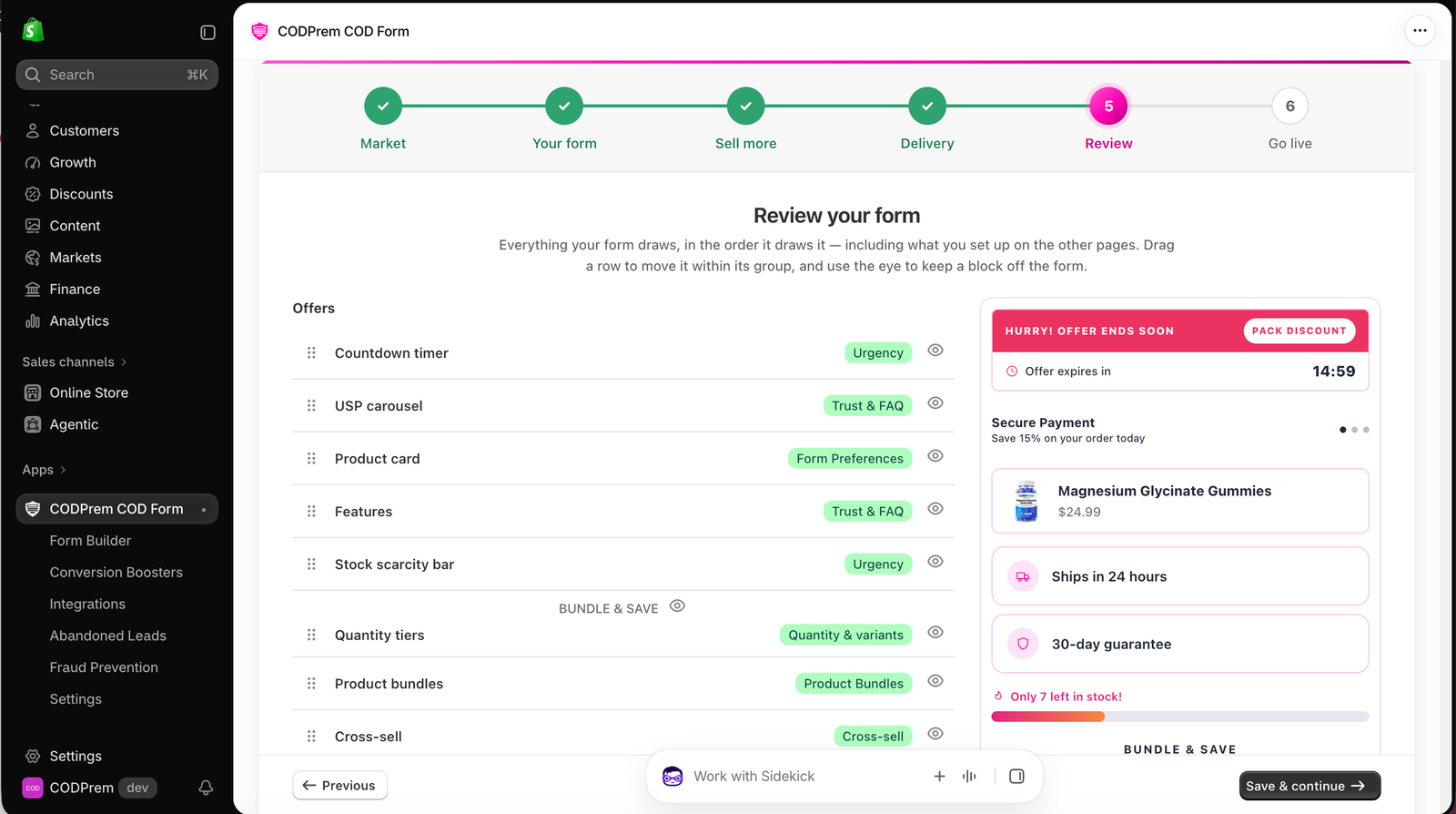
Everything your form draws, in order, including blocks you set up on other pages. Drag a row to move it within its group, and use the eye icon to keep a block off the form.
Step 6 — Go live
The last switch lives in your theme: the CODPrem app embed. Press Open theme editor, switch on CODPrem COD Form under App embeds, press Save in the top-right, then come back and press Check again. When it says The app embed is on, press Finish.
Finish works even if the embed is still off — but the form is not live until you switch it on.